Add a database
Connect an Oracle database, a SQL Server, PostgreSQL or MySQL instance, or a MongoDB replica set to dbCove with one read-only account. dbCove tests the connection before it adds it.
Before you begin
For an Oracle database, you need:
- An Oracle 12.2 or later account with
CREATE SESSIONandSELECT_CATALOG_ROLE, or with a grant on each view. See Database user privileges. - A network path from the dbCove server to the listener, usually port 1521.
- The Manage databases permission, and a free place in your edition.
For the other engines, see Connect a SQL Server instance, Connect a PostgreSQL instance, Connect a MySQL instance or Connect a MongoDB replica set.
Connect an Oracle database
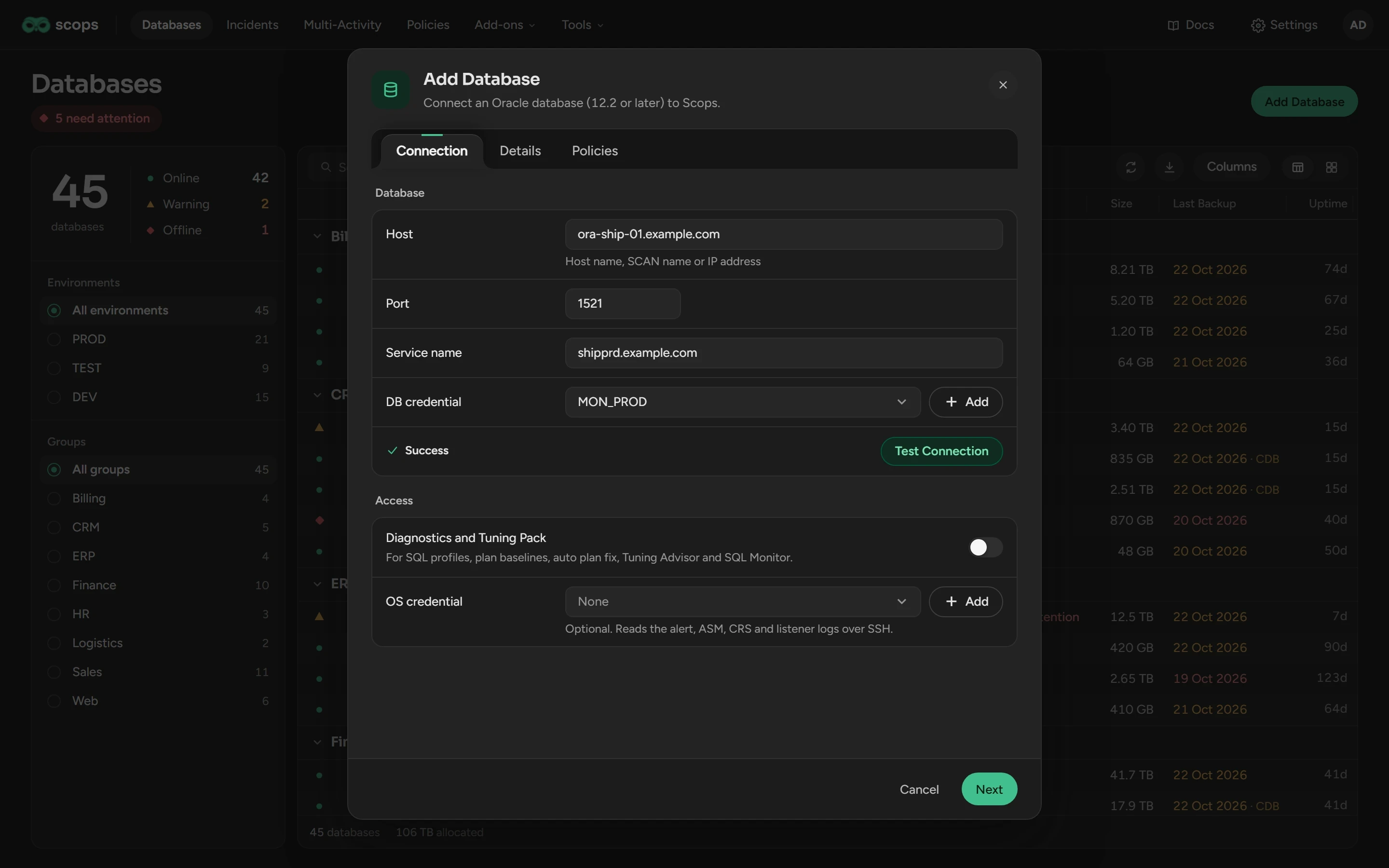
Open Databases in the top bar and click Add Database.
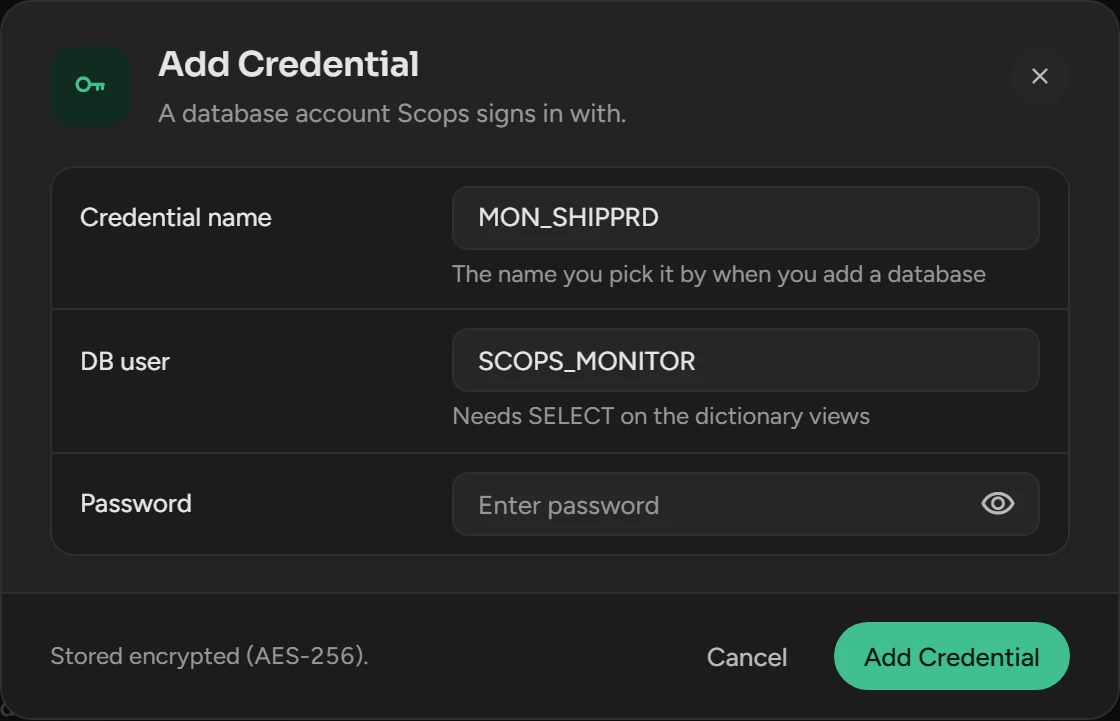
On Connection, enter the Host, Port and Service name. Select the DB credential, or click Add to save a new one.
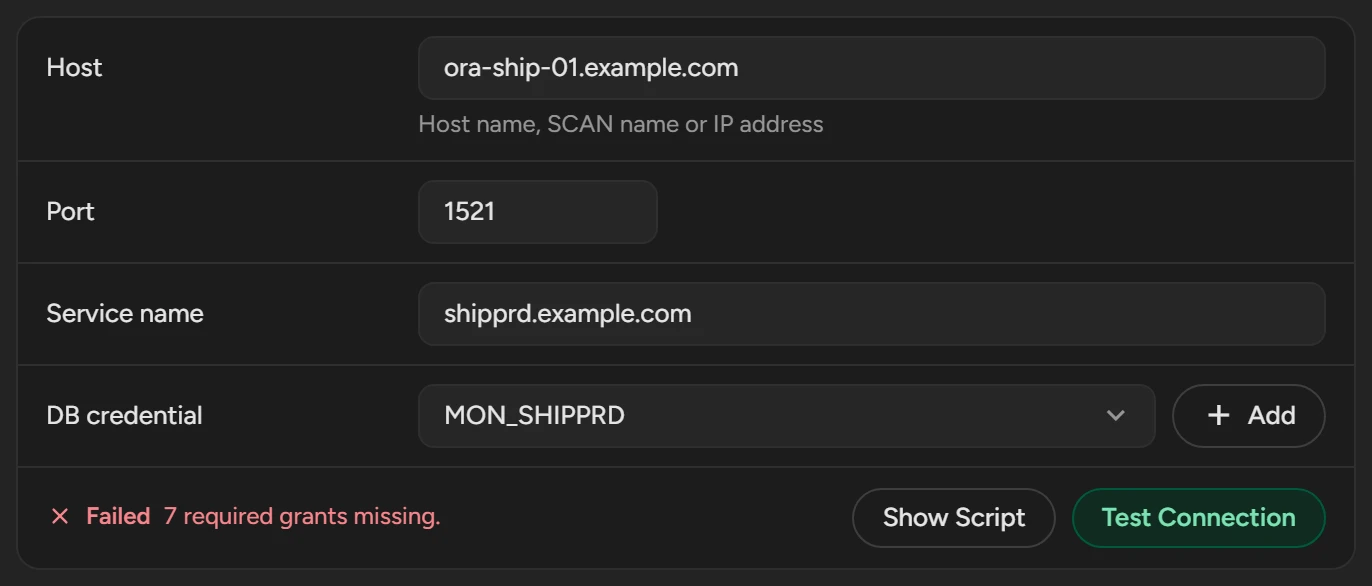
Click Test Connection. The other tabs open only after the test passes. If it fails, see If the test fails.
Click Next. On Details, select the Environment and the Group.
Click Next. On Policies, check the policies and the switches.
Click Add Database.
Collection starts within a minute. A window shows what is ready and what comes next: Radar Engine and dbCove AI get more accurate as the history grows. Later, Learning on the database bar shows the same.
Connection
| Field | What to enter |
|---|---|
| Engine | Oracle by default. For an instance, select SQL Server, PostgreSQL or MySQL. For a replica set, select MongoDB. You cannot change the engine later. |
| Host | The host name, an IP address, or the SCAN name of a RAC cluster. |
| Port | The listener port, 1521 by default. |
| Service name | For a pluggable database, its own service. For a container database, the service of its root. |
| DB credential | The saved user name and password. To add one, you need Manage credentials. |
If the test fails
The cause shows under the fields. Correct it and test again.
| The test says | What to do |
|---|---|
An Oracle error, such as ORA-12514 | See A database cannot connect. |
| "Oracle 12.1 Enterprise is not supported." | dbCove cannot monitor this release. |
| "The Oracle version could not be read" | The account cannot read V$INSTANCE or PRODUCT_COMPONENT_VERSION. Grant the required views. |
| "7 required grants missing." | Click Show Script. Ask a DBA to run the Monitoring script as SYS, in the pluggable database for a PDB. |
| "2 Diagnostics and Tuning Pack grants missing." | Do the same, or set Diagnostics and Tuning Pack to off. |
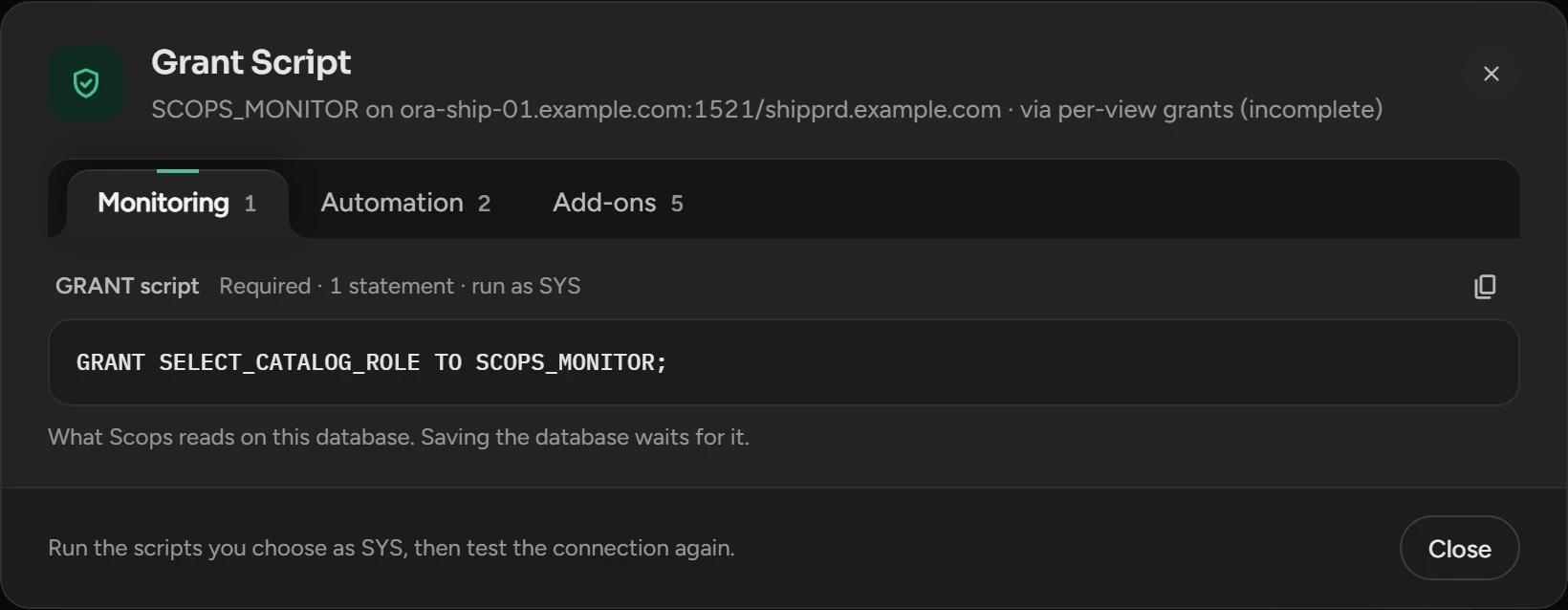
The Grant Script dialog
Show Script shows the GRANT scripts for the missing grants in three tabs: Monitoring, Automation and Add-ons. Without the Monitoring grants, you cannot add the database. Grant the other two for the features that you use. See The GRANT script.
Catalog Role asks for the views with one role. If your site does not permit the role, click Individual Grants: the scripts then have one GRANT for each view. See Grant the views one by one.
Turn on Diagnostics and Tuning Pack
Do this only for a database with a license for both Oracle packs. Monitoring does not need them.
On Connection, set Diagnostics and Tuning Pack to on.
Tick the license confirmation. dbCove records your user name and the time.
Click Test Connection. The test also checks the pack grants.
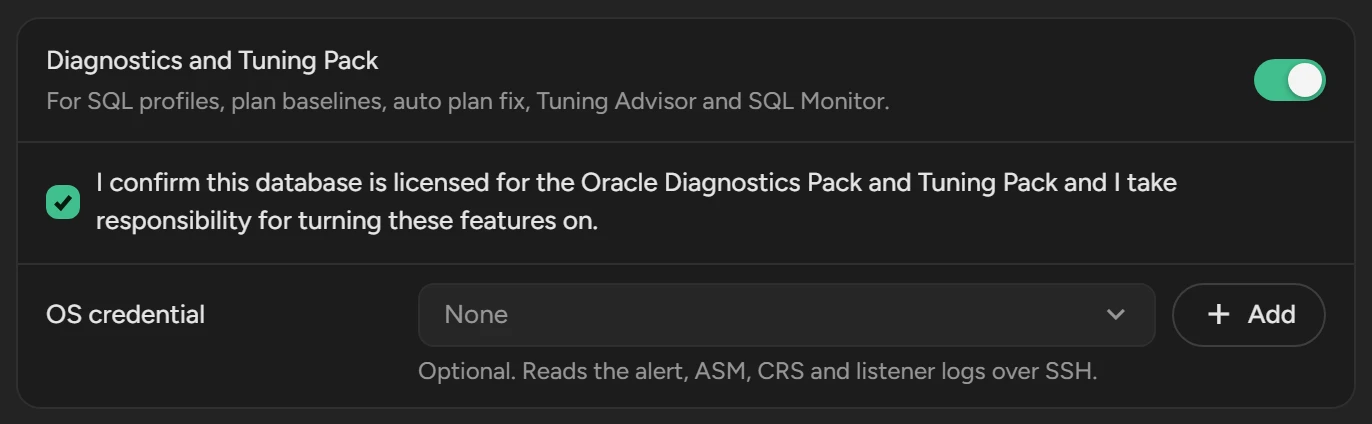
The switch turns on SQL plan baselines, SQL profiles, the automatic plan fix, the SQL Tuning Advisor, SQL Monitor and AWR plans. If you set it to off, dbCove removes the confirmation.
Add an OS credential
This is optional. dbCove then reads the alert, ASM, CRS and listener logs over SSH, usually port 22.
On Connection, select an OS credential, or click Add next to it.
Use an OS user that can read the Oracle logs, usually
oracleorgrid, not root.
Then click Log Watch in the panel of the database, or select it in the row menu. Before the first save, the window shows only Settings. Select the OS credential, click Find Log Files, turn on Collect OS logs and click Save. Later, Settings is at the bottom of the same window.
Connect a SQL Server instance
dbCove connects to the instance and reads its databases through it. You need:
- SQL Server 2017 or later. See Supported databases.
- A SQL Server login or a Windows account with the permissions in SQL Server permissions.
- A network path from the dbCove server to the instance, usually port 1433.
- The Manage databases and View SQL Server permissions, and a free place in your edition.
Open Databases in the top bar and click Add Database.
On Connection, select SQL Server in Engine.
Enter the Host. For a named instance, enter
host\instance.In Sign in with, select SQL Server login or Windows account.
Select the DB credential, or click Add to save a new one.
Under Encryption, select Mandatory or Strict.
Click Test Connection.
Click Next. On Details, select the Environment and the Group.
Click Next. On Policies, check the policies and the switches.
Click Add Database.
The instance shows on the Databases page.
SQL Server fields
| Field | What to enter |
|---|---|
| Host | The host name or IP address. For a named instance, host\instance. |
| Port | Empty for the default port, 1433, or for a named instance. Otherwise the port. |
| Sign in with | SQL Server login: the server must allow SQL Server Authentication (mixed mode). Windows account: an account that dbCove keeps in Security, or the account of the dbCove service. |
| DB credential | The login and its password, or the Windows account, written DOMAIN\user, and its password. For a Windows account, you can also select dbCove service account: dbCove then signs in as its service account and keeps no password. |
| Encryption | The connection is always encrypted. Mandatory, the default, works with every supported version. Strict always checks the certificate and needs SQL Server 2022 or later. |
| Trust server certificate | Turn it on for a server that uses a certificate it made itself. Off by default. You cannot turn it on with Strict. |
| Name in certificate | The name on the server's certificate, if the host is written in a different way, for example as an IP address or an alias. Empty means the host. |
The Display name of a SQL Server instance is on Details. If it is empty, dbCove uses the server name.
If the SQL Server test fails
| The test says | What to do |
|---|---|
| "No SQL Server answers at ..." | Check the host, the port, the instance name and the firewall. |
| "The server's certificate is not trusted." | If the server uses a certificate it made itself, turn on Trust server certificate. |
| "The server's certificate was issued for another name than ..." | Enter the name that the certificate carries in Name in certificate. |
| "The server did not take strict encryption." | Select Mandatory. |
| "... is not supported." | dbCove cannot monitor this version or this edition. See Supported databases. |
| "3 required permissions missing." | Click Show Script. Ask a member of sysadmin to run the Monitoring script. See SQL Server permissions. |
If only the permissions for the SQL Server Agent jobs are missing, the test passes. dbCove does not read the Agent jobs until a member of sysadmin runs the Agent Jobs script.
Connect a PostgreSQL instance
dbCove connects to the instance at its host and port and reads its databases through it. You need:
- PostgreSQL 16 or later. See Supported databases.
- A role that is a member of
pg_monitor, and a line inpg_hba.confthat lets the role in from the dbCove server. See PostgreSQL permissions. - A network path from the dbCove server to the instance, usually port 5432.
- The Manage databases and View PostgreSQL permissions, and a free place in your edition.
Open Databases in the top bar and click Add Database.
On Connection, select PostgreSQL in Engine.
Enter the Host. If the instance does not use port 5432, enter the Port.
Select the DB credential, or click Add to save a new one.
Select the SSL mode.
If you want the CPU, memory, disk space and server log of the host, select an OS credential.
Click Test Connection.
Click Next. On Details, select the Environment and the Group.
Click Next. On Policies, check the policies and the Radar switch.
Click Add Database.
The instance shows on the Databases page.
PostgreSQL fields
| Field | What to enter |
|---|---|
| Host | The host name or IP address. |
| Port | Empty for the default port, 5432. Otherwise the port. |
| Display name | A second name for the instance. If it is empty, dbCove uses the address of the instance. For PostgreSQL, this field is on Connection, not on Details. |
| Maintenance DB | The database that the connection opens in, postgres if it is empty. dbCove finds the other databases through it. |
| DB credential | A PostgreSQL role and its password. The role must be a member of pg_monitor. |
| SSL mode | Prefer, the default: encrypted if the server offers TLS. Require: always encrypted. With these two, dbCove does not check the certificate. Verify full: always encrypted, and the certificate must be trusted and carry the name of the host. |
| OS credential | Optional. An OS user of the host, for SSH. The SSH port is part of the OS credential. Without it, dbCove does not read the CPU, memory, disk space and server log of the host. |
If the PostgreSQL test fails
| The test says | What to do |
|---|---|
| "No PostgreSQL answers at ..." | Check the host, the port and the firewall. |
| "pg_hba.conf has no line that lets ... in from ..." | Add the line that the message gives to pg_hba.conf, then reload the configuration. |
| "The instance refused the password of ..." | Correct the password in the credential. Make sure that the role exists. |
| "The instance does not take TLS ..." | Turn on ssl on the instance, or select Prefer. |
| "... is not supported." | dbCove cannot monitor this version. See Supported databases. |
| "2 required permissions missing." | Click Show Script. Ask a superuser to run the Monitoring script. See PostgreSQL permissions. |
| The host could not be signed in to over SSH | Correct the OS credential, or clear it to add the instance without its host. |
If only the optional part is missing, the test passes. A line under the result says what dbCove does not read yet, for example the statement statistics. Show Script gives the steps.
Connect a MySQL instance
dbCove connects to the instance at its host and port and reads its schemas through it. You need:
- MySQL 8.0 or later, with
performance_schemaon. See Supported databases. - A MySQL account with a password and the privileges that dbCove lists. See MySQL privileges.
- A network path from the dbCove server to the instance, usually port 3306.
- The Manage databases and View MySQL permissions, and a free place in your edition.
Open Databases in the top bar and click Add Database.
On Connection, select MySQL in Engine.
Enter the Host. If the instance does not use port 3306, enter the Port.
Select the DB credential, or click Add to save a new one.
Select the SSL mode.
Click Test Connection.
Click Next. On Details, select the Environment and the Group.
Click Next. On Policies, check the policies and the Radar switch.
Click Add Database.
The instance shows on the Databases page.
MySQL fields
| Field | What to enter |
|---|---|
| Host | The host name or IP address. |
| Port | Empty for the default port, 3306. Otherwise the port. |
| DB credential | A MySQL account and its password. |
| SSL mode | Preferred, the default: encrypted if the server offers TLS. Required: always encrypted. With these two, dbCove does not check the certificate. Verify full: always encrypted, and the certificate must be trusted and name the host. |
If the MySQL test fails
| The test says | What to do |
|---|---|
| "No MySQL answers at ..." | Check the host, the port and the firewall. |
| "The instance refused the password of ..." | Correct the password in the credential. Make sure that the account exists for the address of the dbCove server. |
| "The instance takes TLS connections only ..." | Select Required. |
| "MariaDB is not supported." or "MySQL ... is not supported." | dbCove cannot monitor this server. See Supported databases. |
| "performance_schema is off on this instance ..." | Set performance_schema = ON in the server configuration and restart the server. |
| Required privileges are missing | Click Show Script and ask an administrator to run it. On a replica, run it on its source. See MySQL privileges. |
Connect a MongoDB replica set
dbCove connects to one member of the replica set and finds the other members through it. You need:
- MongoDB 7.0 or later. See Supported databases.
- A MongoDB user with the role that the script of the test makes. See MongoDB role.
- A network path from the dbCove server to each member, usually port 27017.
- The Manage databases and View MongoDB permissions, and a free place in your edition.
Open Databases in the top bar and click Add Database.
On Connection, select MongoDB in Engine.
Enter the Host of one member. If it does not use port 27017, enter the Port.
Select the DB credential, or click Add to save a new one.
If the user is not in
admin, enter its Auth database. Select the TLS mode.Click Test Connection. The result shows each member with its state, or why it does not answer.
Click Next. On Details, select the Environment and the Group.
Click Next. On Policies, check the policies and the Radar switch.
Click Add Database.
The replica set shows on the Databases page, with its members.
MongoDB fields
| Field | What to enter |
|---|---|
| Host | The host name or IP address of one member. |
| Port | Empty for the default port, 27017. Otherwise the port. |
| DB credential | A MongoDB user and its password. |
| Auth database | The database that the user was made in. admin if it is empty. |
| TLS | Off, the default: not encrypted. Require: always encrypted, and dbCove does not check the certificate. Verify full: always encrypted, and the certificate must be trusted and carry the name of the member. |
If the MongoDB test fails
| The test says | What to do |
|---|---|
| "No MongoDB answers at ..." | Check the host, the port and the firewall. |
| "... refused ... or its password" | Correct the password in the credential, and the Auth database. |
| "This server requires TLS ..." | Select Require or Verify full. |
| "This is a mongos router." | Add the replica set of each shard and of the config servers. |
| "MongoDB ... is not supported." or "... is not MongoDB." | dbCove cannot monitor this server. See Supported databases. |
| The user lacks required actions | Click Show Script and run it in mongosh on the primary as a user administrator. See MongoDB role. |
When the member that you gave answers, a member that does not answer does not stop the test. The result says which member does not answer, and why.
Details
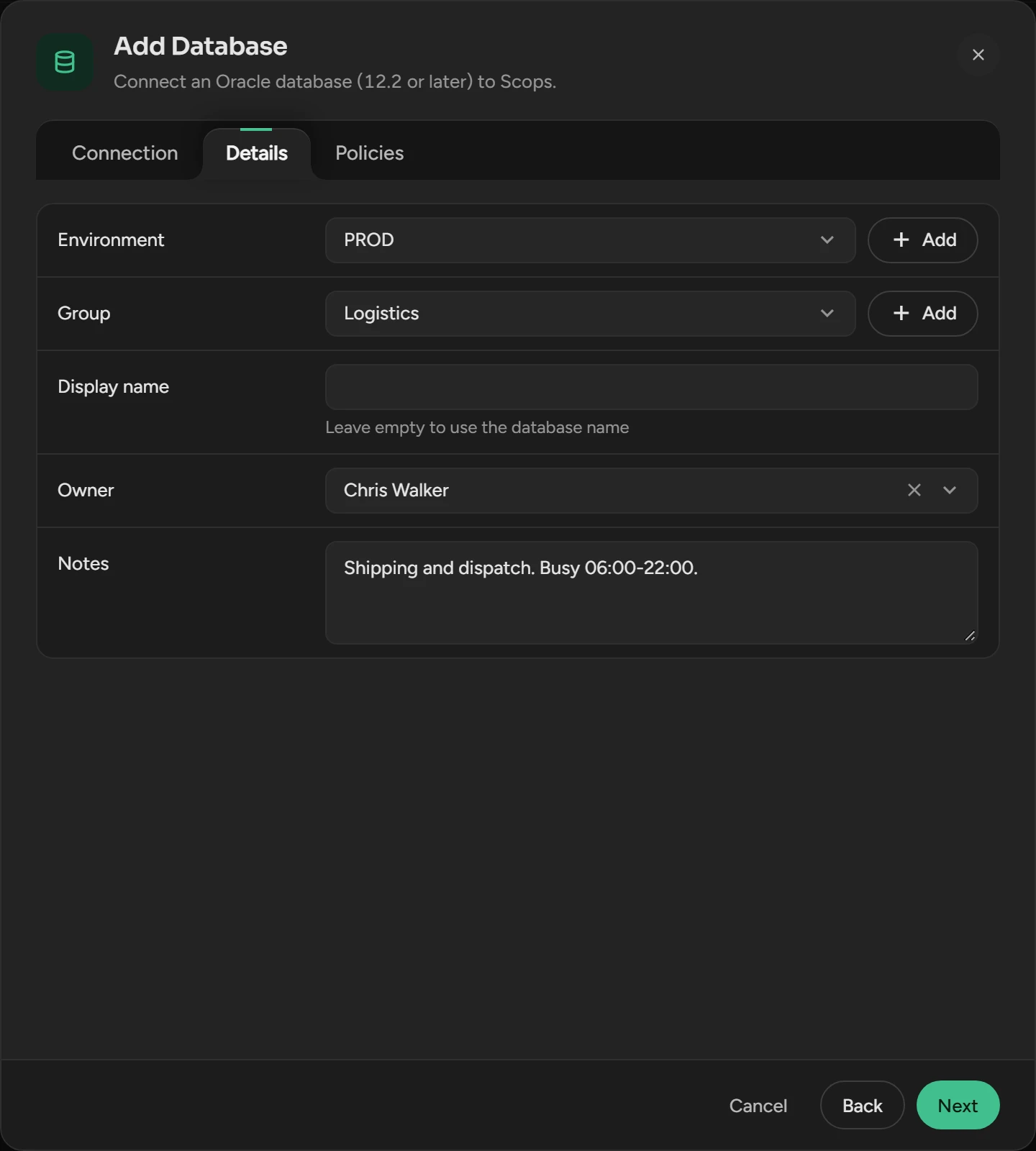
| Field | What it is |
|---|---|
| Environment | Required. Where the database runs, for example Production. To add one, you need Manage environments. |
| Group | Required. The team or application. To add one, you need Manage groups. |
| Display name | A second name for alerts, reports and the database pickers. For a PostgreSQL instance, it is on Connection. |
| Owner | The person who owns the database. |
| Notes | Up to 4,000 characters. |
Policies and monitoring
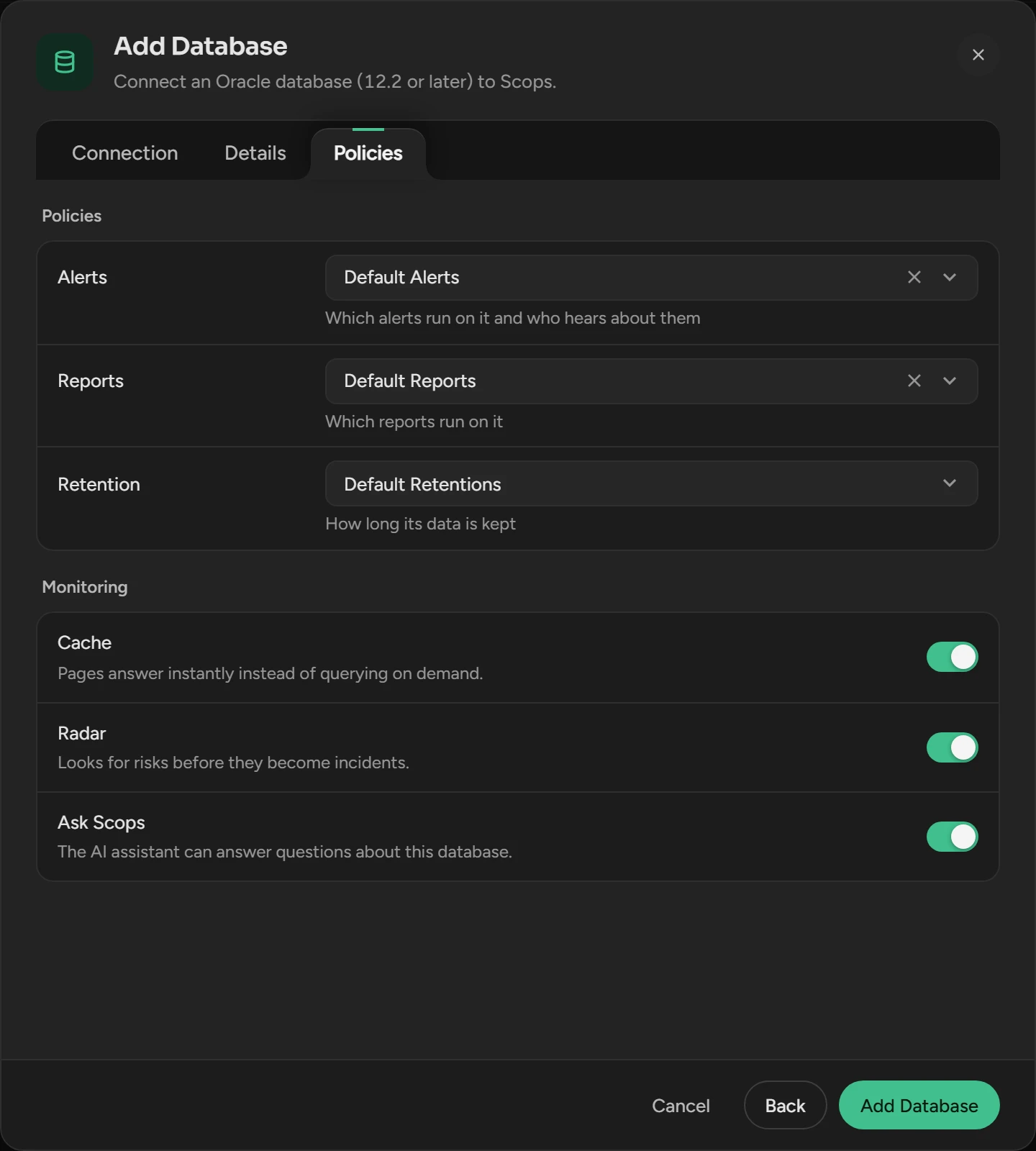
| Field | What it does | Default |
|---|---|---|
| Alerts | The alert policy. | Oracle Alerts |
| Reports | The report policy. | Oracle Reports |
| Retention | The retention policy. Required. | Oracle Retentions |
| Cache | The pages of the database open without a query on the database. | On |
| Radar | Radar Engine looks for risks on the database. | On |
| Ask dbCove | dbCove AI answers questions about the database. | On, if AI is on |
An instance gets the policies of its own engine. The defaults are SQL Server Alerts, SQL Server Reports and SQL Server Retentions, or PostgreSQL Alerts, PostgreSQL Reports and PostgreSQL Retentions. An instance must have an alert policy and a report policy.
An instance has no Cache switch. A PostgreSQL instance has no Ask dbCove switch.
To change the switches for many databases, use Policies › Monitoring.
After you add the database
These times are for an Oracle database.
| What | First data |
|---|---|
| Status on the Databases page | At once |
| Live Activity and the activity on the Dashboard | Within a minute |
| Alerts, size, last backup and the Objects catalog | Within about 5 minutes |
| Radar Engine and Health Check | Within about 10 minutes |
| Insights and SQL statistics | Within 10 to 20 minutes |
| Growth and trend charts | As history grows |
If dbCove refuses the database
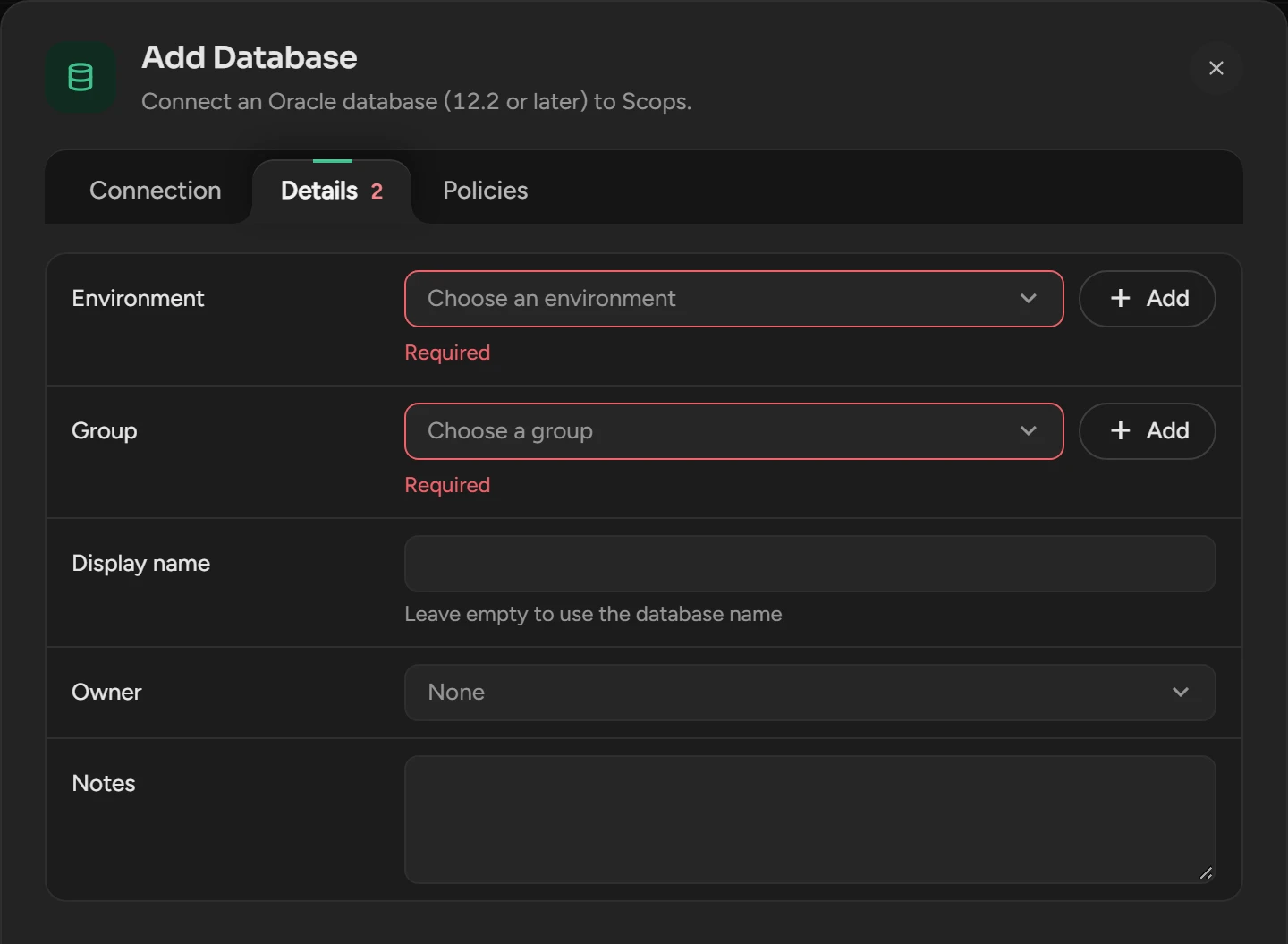
dbCove saves nothing and opens the first tab with a problem:
- A required field is empty: it shows Required, and its tab shows a red number.
- The connection test fails. dbCove tests again before it saves.
- The edition is full: see When you reach a limit.
- The database or the instance is already registered. A standby counts as a different one.
Edit a database later
On the Databases page, right-click the row and select Edit Database.
Change the fields on any tab and click Save.
You do not have to test again. If you turn on the pack switch, dbCove checks the pack grants. You cannot change the engine.
Related
Updated November 29, 2026