Report policies
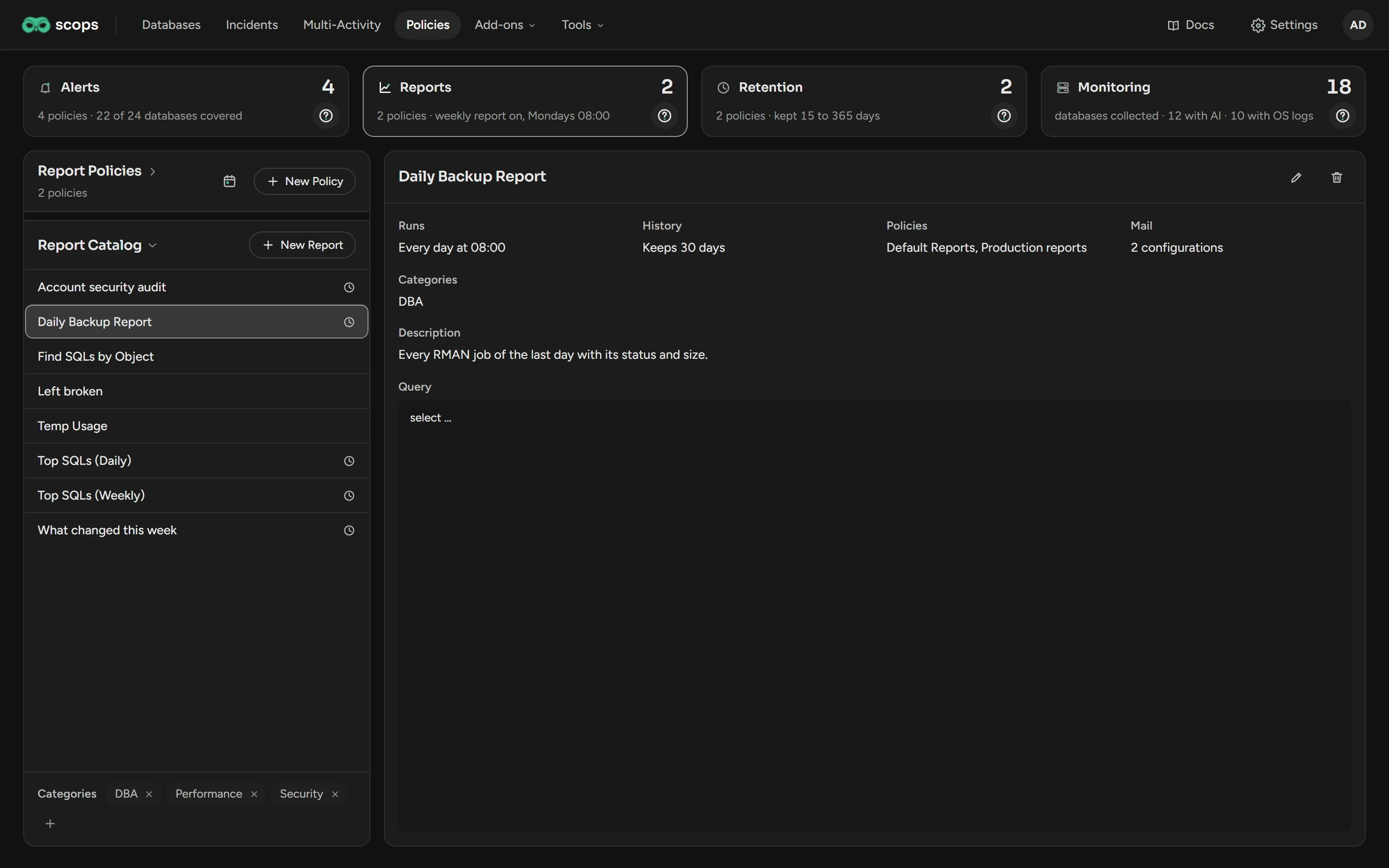
A report policy runs reports on a group of databases and mails the results. Open Policies › Reports.
Before you begin
- Report policies need Manage Policies. The Report Catalog needs Manage reports.
- Mail uses Settings › Email. See Email and notifications.
- Select the engine at the top of the list: Oracle, SQL Server or PostgreSQL. The policies and the Report Catalog are those of that engine.
Create a report
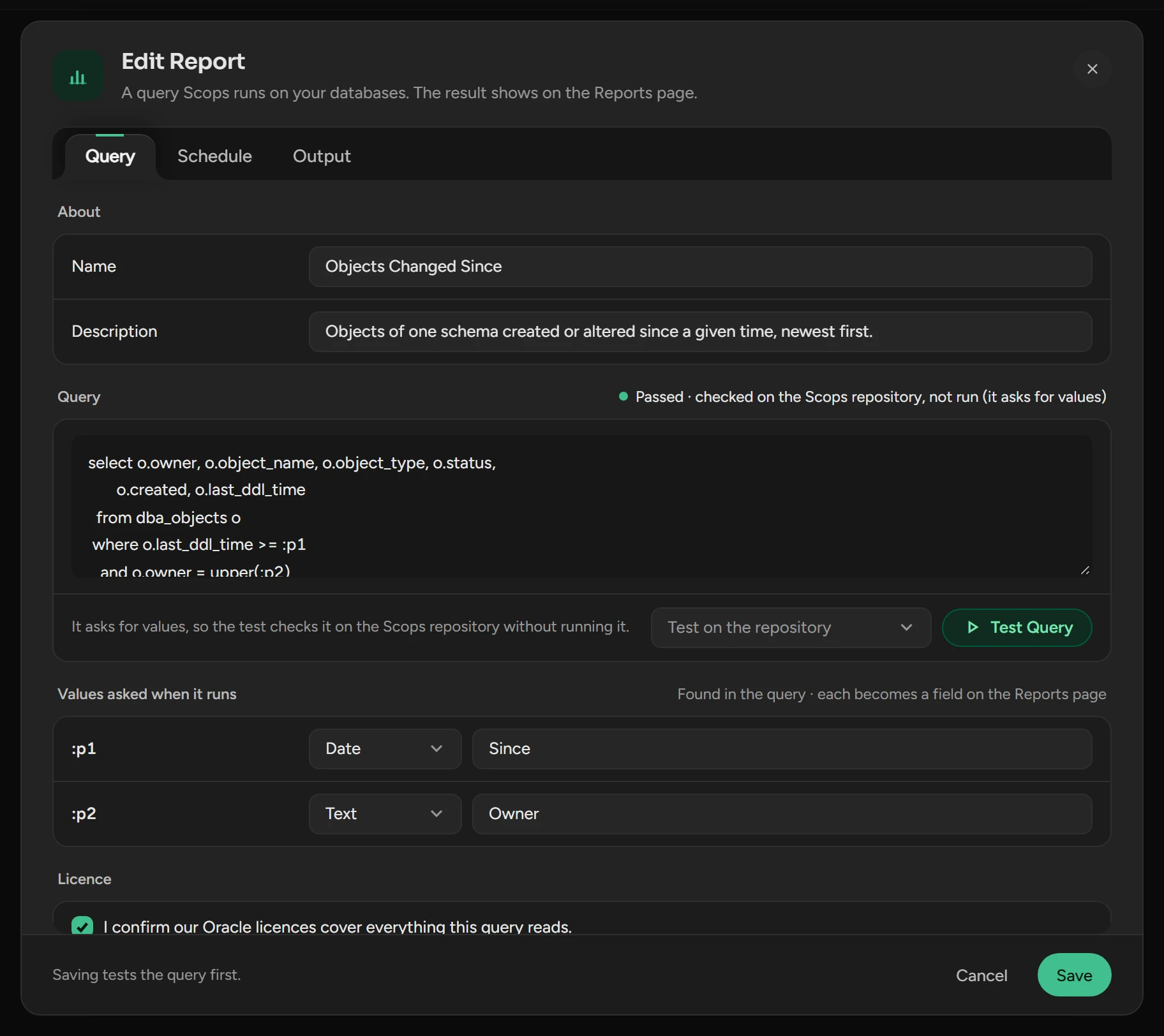
Under the list of policies, click New Report.
On Query, type a Name and a Description.
Write the Query. For values that the user gives, use
:p1to:p5on Oracle,@p1to@p5on SQL Server, or$1to$5on PostgreSQL.Select a database and click Test Query. The repository cannot read
DBA_andV$views. A SQL Server or PostgreSQL query runs only on an instance: select one.For an Oracle report, tick I confirm our Oracle licenses cover everything this query reads.
Click Add Report. dbCove saves the report only if the test passes. The report opens in the Report Catalog.
- The query is one SELECT, or WITH … SELECT. dbCove refuses PL/SQL and statements that change data.
- On Oracle, dbCove refuses Diagnostics and Tuning Pack sources:
DBA_HIST_views, active session history, ADDM, the advisors and SQL Monitor. - A SQL Server report is a T-SQL query, and a PostgreSQL report is a PostgreSQL query.
- The monitoring account of each database must be able to read what the query reads.
- If you change only the schedule or the mail of a saved report, dbCove does not test the query again.
To change a report, click Report Catalog under the list of policies. Click the report, then click its pencil.
Set when a report runs
Open the Schedule tab of the report.
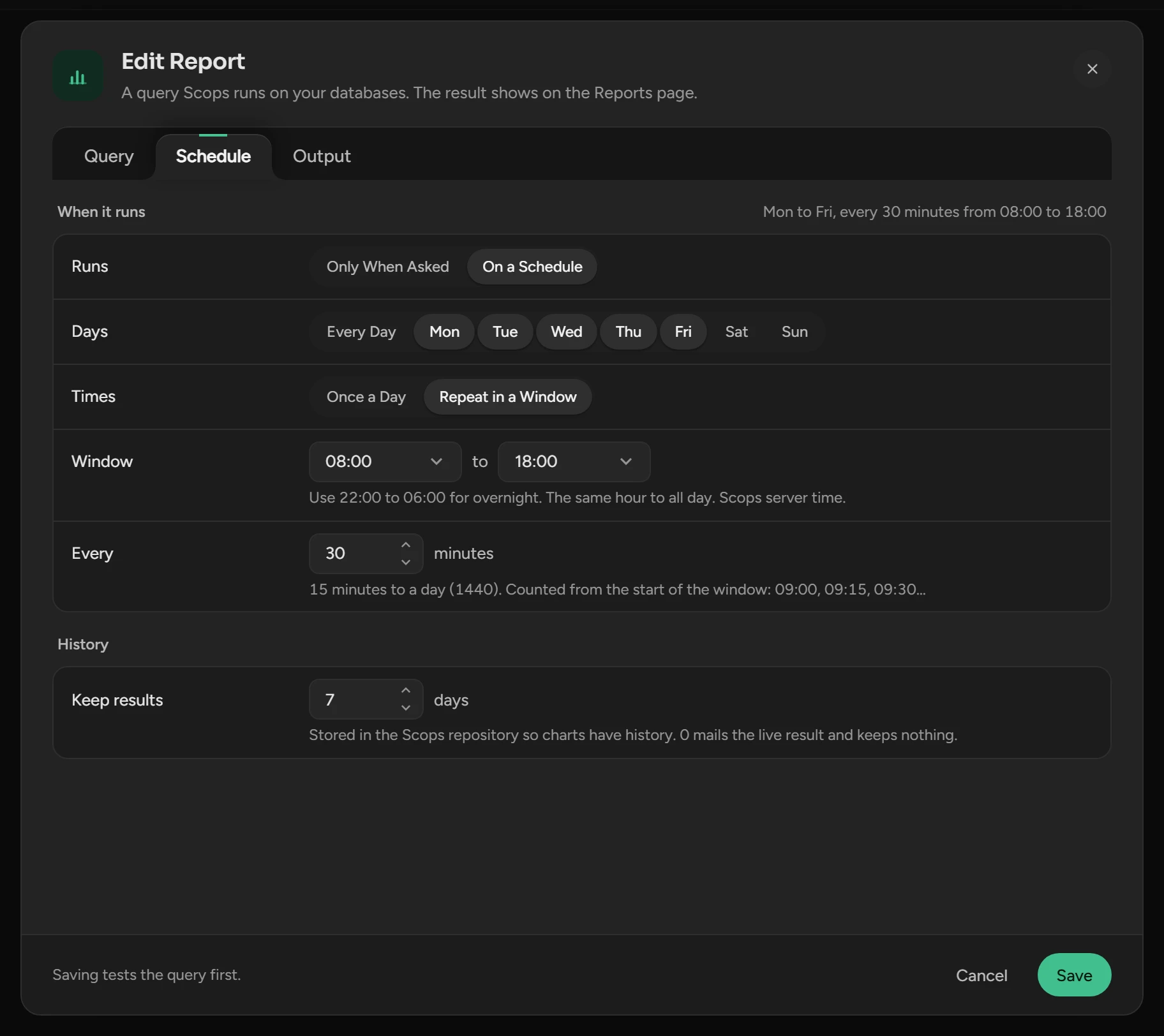
| Field | What it does |
|---|---|
| Runs | Only When Asked (the default) or On a Schedule. A report that asks for values runs only when asked. |
| Days | Every Day, or days of the week. |
| Times | Once a Day at an hour, or Repeat in a Window every 15 to 1440 minutes. |
| Keep results | Days to keep the rows of each run, 0 to 32, for charts. The query needs a SAMPLE_TIME column of type DATE. |
A scheduled report runs only on the databases of the running policies that hold it. Times use the clock of the dbCove server.
Mail a report
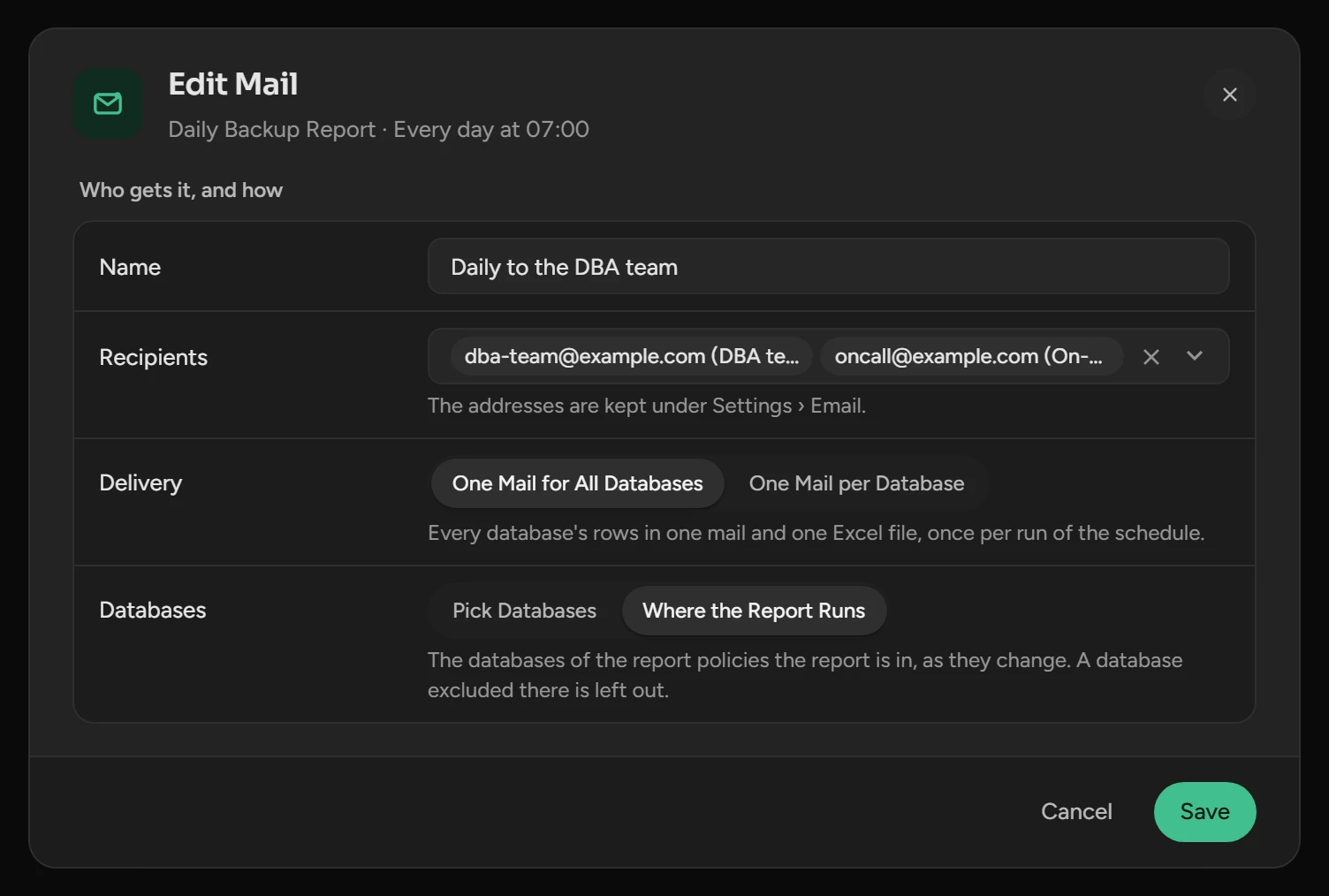
Save the report. Then open its Output tab.
Click Add Mail.
Type a Name and select the Recipients.
Select the Delivery: One Mail for All Databases or One Mail per Database.
Select the Databases, then click Save.
The mail follows the schedule. It shows the first 250 rows, and the Excel file has all rows. A run with no rows sends no mail. The send button of a mail runs the report now and sends it.
On Output you can also set the Categories, Draw a chart and Colours in the mail.
Add a report to a policy
Click the policy in the list.
Click Add Report and select the report. If the report is not in the list, click New Report beside the search box. dbCove selects the new report.
The Runs column shows when the report runs. The Excluded cell sets the databases that the report skips. The bin removes the report from the policy, but not from the catalog.
Create a report policy
Click New Policy.
Type a Name and click Create Policy.
Click its database count and select the databases. Click Save.
A new report policy has no reports. A database that you add leaves its old report policy. A SQL Server or PostgreSQL instance always has a report policy: an instance that you clear goes to the default policy of its engine.
The default policies of SQL Server and PostgreSQL hold the starter reports of their engine, with no schedule:
| Policy | Starter reports |
|---|---|
| SQL Server Reports | Daily Backup, Failed Agent Jobs, Database Sizes, Top Queries by CPU, Tempdb Usage, Account Security Audit, Missing Indexes |
| PostgreSQL Reports | Database Sizes, Top Statements by Total Time, Connections by Database and User, Replication Status, Vacuum and Wraparound, Role Security Audit, Long Transactions, Settings Changed from Default |
Stop, rename or delete a policy
- Running switch: a stopped policy keeps its databases but runs no reports.
- Pencil: rename the policy.
- Bin: delete the policy. Its Oracle databases then have no report policy. Its instances go to the default policy of their engine.
Delete a report
In the Report Catalog, click the report, then click its bin. The report leaves all policies. dbCove deletes its mails and its kept results.
Manage categories
At the bottom of the Report Catalog, + adds a category and × deletes one. The Reports page lists the reports by category.
Weekly performance report
One mail for each database every week: its health, a dbCove AI summary and eight daily charts. The settings are one set for all policies. The weekly report is for Oracle databases: its button shows when Oracle is selected.
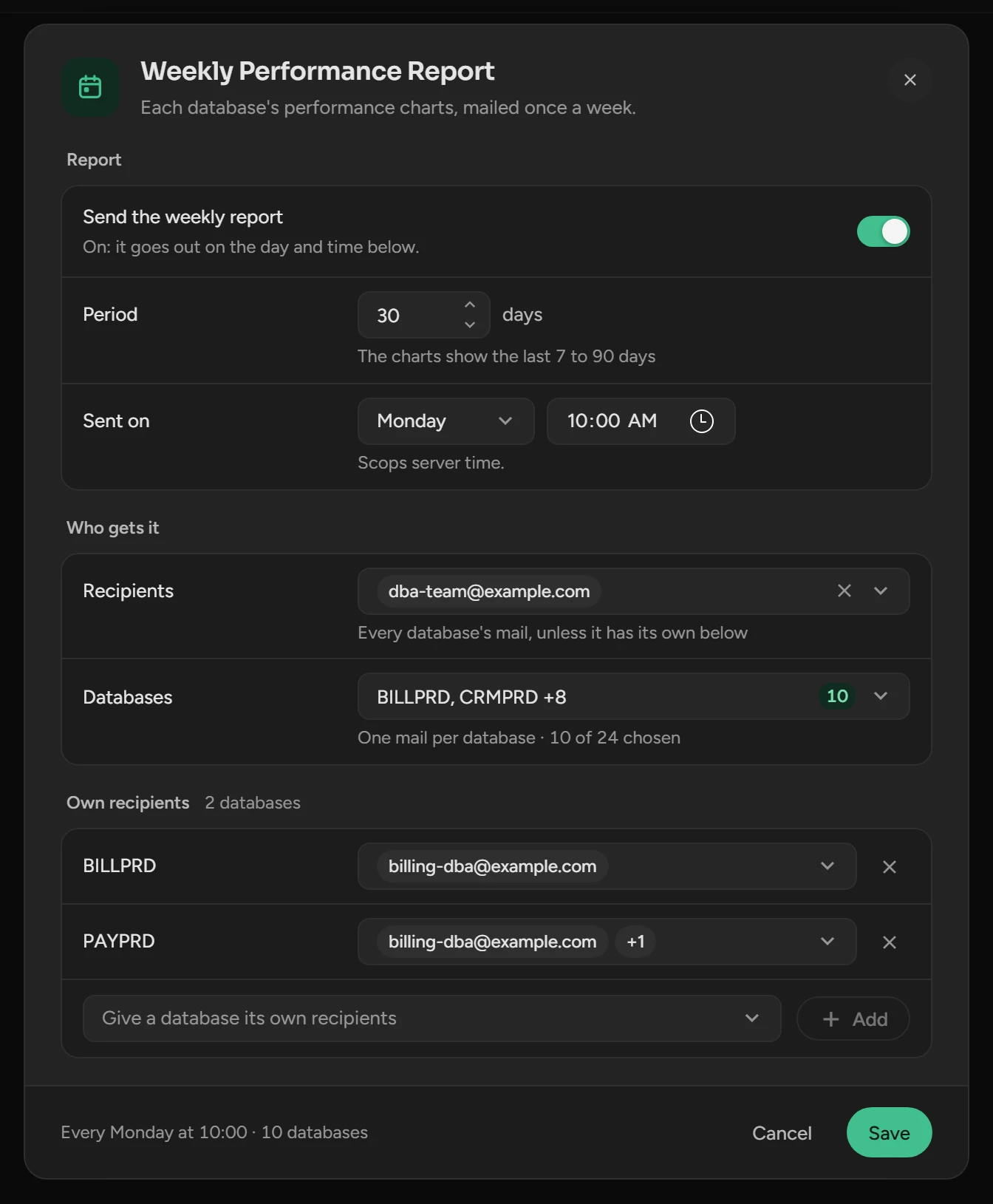
Click the calendar button above the list, Weekly report settings.
Turn on Send the weekly report.
Set the fields in the table below.
Click Save.
| Field | What it does | Default |
|---|---|---|
| Period | The days that the charts show. | 30 days (7 to 90) |
| Sent on | The day and time, on the clock of the dbCove server. | Monday, 10:00 |
| Recipients | Who gets the mail. | None |
| Databases | The databases that get a mail. | None |
| Own recipients | Other recipients for some databases. Click Add. | None |
What the mail holds
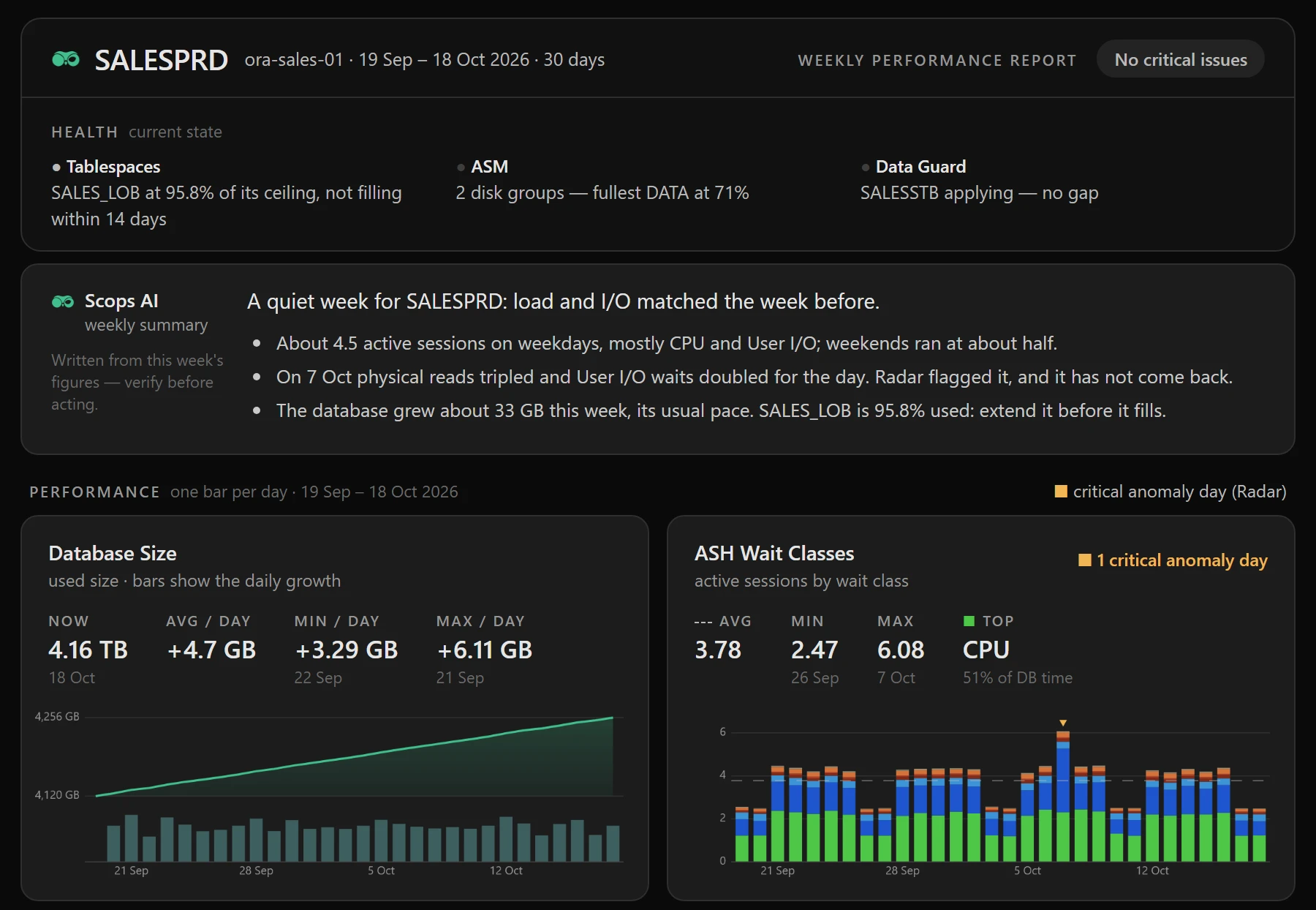
| Part | What it shows |
|---|---|
| Health | Tablespaces, ASM and Data Guard, the most urgent first. |
| dbCove AI weekly summary | The week compared with the week before. It needs dbCove AI. |
| Performance | Eight charts with a bar for each day. A day with a critical anomaly is orange. |
The report sends no query to the database. It uses the data that dbCove collected.
Related
Updated November 29, 2026