Ports and network
Find the dbCove address, change its ports and open the firewall. Users need only the HTTPS port.
Find the address of a server
Users open https://<server>:5138 by default. To see the port on the dbCove server, look at one of these:
- the dbCove shortcut;
- the description of the dbCoveWeb service in
services.msc; "HttpsPort"inC:\Program Files\dbCove\blazor\appsettings.json.
Change the ports
You need Manage Settings.
In Settings › Connection, find the Ports group.
Type the new ports: from 1024 to 65535, free, and different from each other.
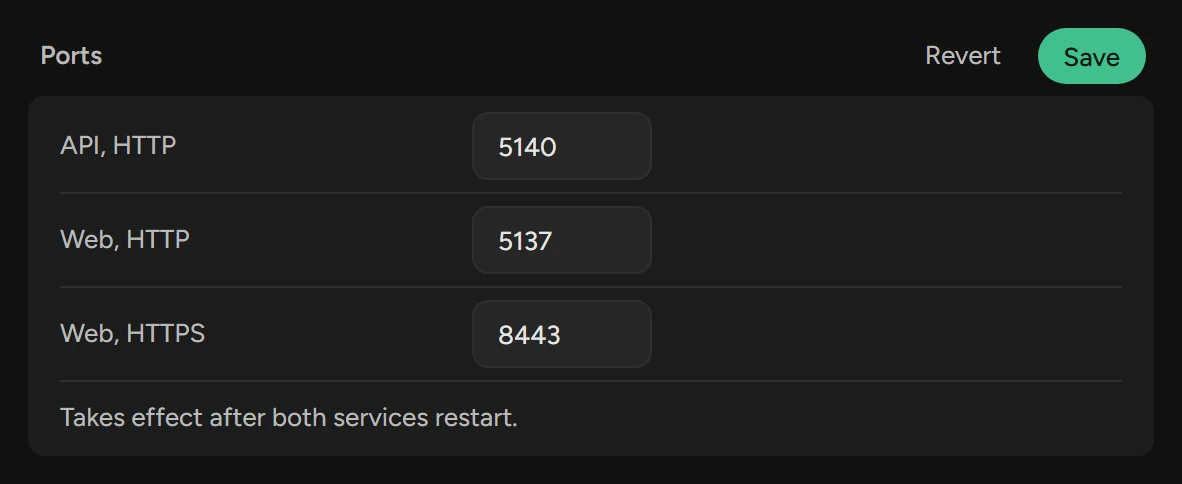
Click Save.
Restart the dbCoveWeb and dbCoveApi services.
The saved ports have priority over the configuration files. A new port needs no new firewall rule. If a saved port is not free at start, see A port is taken.
Open the firewall
Setup adds the inbound rule dbCove Web Interface, unless you clear its task. If you cleared it, add a rule for the HTTPS port as administrator. Use a different name, because an upgrade replaces dbCove Web Interface.
netsh advfirewall firewall add rule name="dbCove HTTPS 5138" ^
  dir=in action=allow protocol=TCP localport=5138
Do not open the HTTP port or the API port.
Use a reverse proxy
A proxy on the dbCove server can forward to http://localhost:5137. It must pass WebSocket connections.
For a proxy on a different machine, open the HTTP port to the network:
Add
"HttpBind": "Any"to theServerblock ofC:\Program Files\dbCove\blazor\appsettings.json:"Server": { "HttpPort": 5137, "HttpsPort": 5138, "HttpBind": "Any" }Restart the dbCoveWeb service.
Find a host without a domain
A database can report a host name with no domain. dbCove looks for the host in the domain of the address that you added the database with, in the domains of Host domains, and in the domains of the listener addresses of the database. When dbCove finds a host in a new domain, it adds the domain to Host domains.
To see the hosts of a database, click Log Watch in the panel of the database. The Host column of Nodes shows each host with its domain. If dbCove did not find the domain of a host, select the node: the line The domain of this host was not found. shows under its name. dbCove then connects to the address where the instance listens.
To give the domain of a host:
Click + next to The domain of this host was not found.
Type the domain, for example
db.example.com, and click Add.
dbCove keeps the domain only if DNS has the host in it. The domain then goes to Host domains for all databases. You can also change the list in Settings › Connection: put ; between the domains and click Save in the header of Monitored databases. No restart is necessary.
Ports dbCove listens on
| Default port | Service | Who can reach it |
|---|---|---|
| 5138, HTTPS | dbCoveWeb | All computers that the firewall lets in. |
| 5137, HTTP | dbCoveWeb | This server only. It sends passwords without encryption. |
| 5140, HTTP | dbCoveApi | This server only. |
Connections dbCove makes
All these connections start on the dbCove server:
| To | Port | When |
|---|---|---|
| The repository listener | Usually 1521 | Always. |
| The listener of each Oracle database | Usually 1521 | Always. |
| Each SQL Server instance | Usually 1433 | Always. For a named instance without a port, also UDP 1434 to the SQL Server Browser service. |
| Each PostgreSQL instance | Usually 5432 | Always. |
| Each MySQL instance | Usually 3306 | Always. |
| Each member of a MongoDB replica set | Usually 27017 | Always. |
| The database hosts, over SSH | Usually 22 | For the OS logs of an Oracle database, and for the host of a PostgreSQL instance that has an OS credential. |
| Your mail server | As set in Settings › Email | When dbCove sends mail. |
| Your trap receiver | As set in Settings › Email | When Send traps is on. |
| Your directory server | 389, or 636 for LDAPS | When Sign in with LDAP is on. |
| The AI model endpoint | Usually 443 | When you set up dbCove AI. |
https://scops.dev | 443 | Only when you click Activate. If the server cannot reach it, your browser sends the request. |
dbCove makes no other internet connection: no update check and no usage data.
Related
Updated November 29, 2026