Find your way around
Use the top bar for the pages about all databases, and the database bar for the pages of one database or instance.
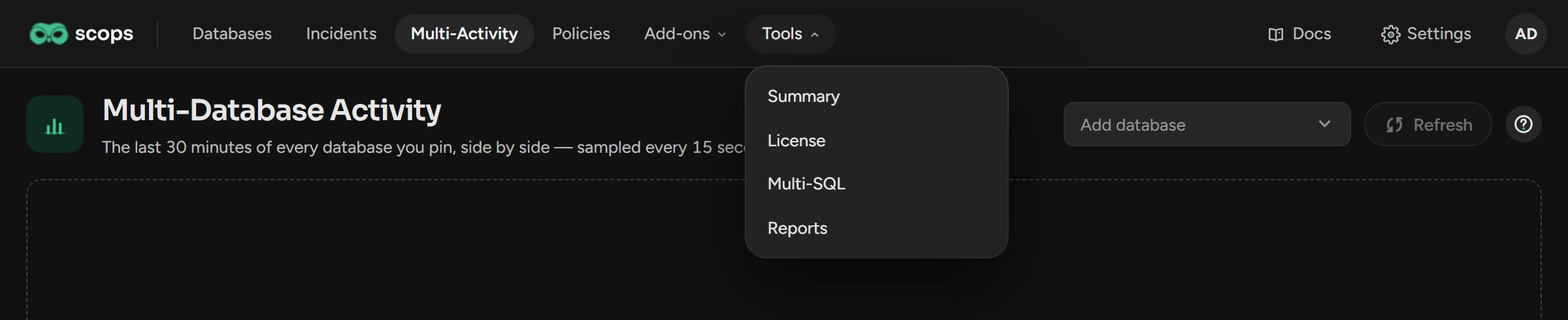
The top bar
| Item | What it opens |
|---|---|
| The dbCove logo | Databases, from both bars. |
| Databases | All your databases. dbCove opens here. |
| Incidents | The alerts and the Radar findings. |
| Multi-Activity | The last 30 minutes of the databases that you pin. |
| Policies | Alerts, reports, retention and monitoring for groups of databases. |
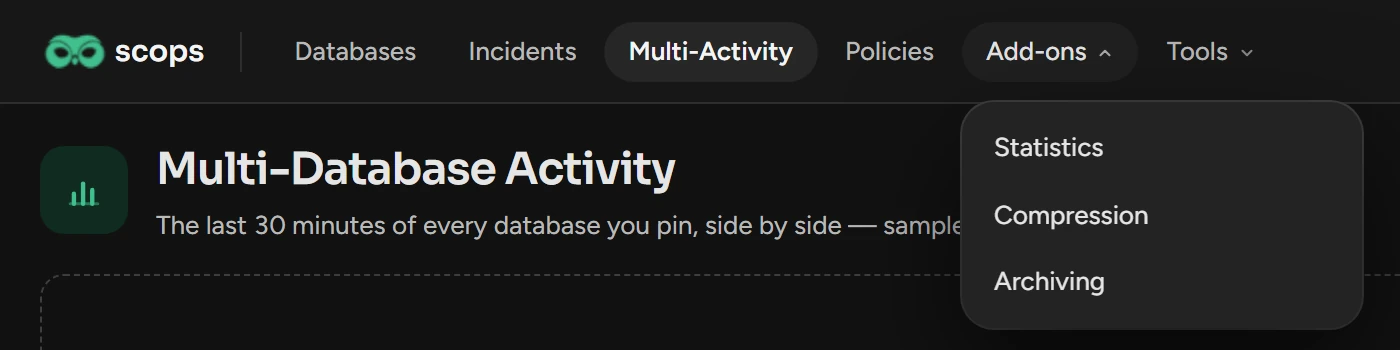
| Add-ons | Statistics, Compression and Archiving. |
| Tools | Summary, License, Multi-SQL and Reports. |
| Docs | These docs. |
| Settings | Users, mail, connections, AI, logs and all other settings. |
| Your initials | The account menu. |
You see only the items that your role allows. See Permissions.
The database bar
Click the name of a database on the Databases page. Its Dashboard opens in a new browser tab, with the database bar at the top.
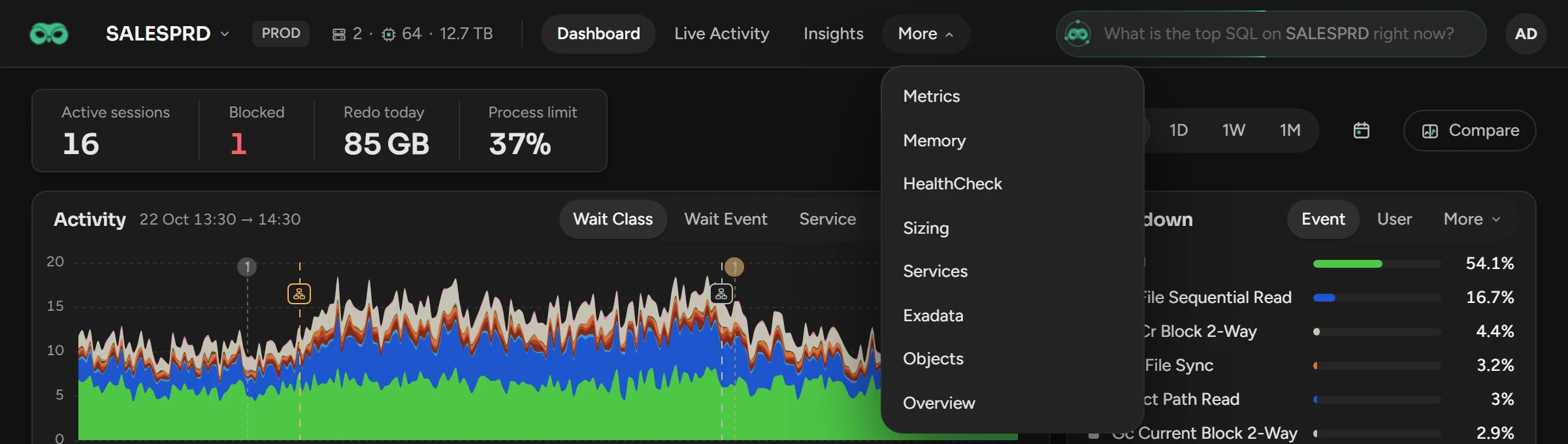
| Item | What it is |
|---|---|
| The database name | Opens the database switcher. The figures of the instance are at its top. |
| The environment | For example PROD or TEST. |
| Learning | On a new database only, for example "Learning · day 2 of 14". Click it to see what is ready and what comes next. It goes away after 14 days, or after 10 days if Radar is off for the database. |
| The tabs | Dashboard, Live Activity, Insights, Metrics, Memory, Health Check, Sizing, Services, Overview, Exadata (only on Exadata) and Objects. The tabs that do not fit are under More. |
| The Ask button | The dbCove AI mark. Click it to ask dbCove AI about this database. It shows after an administrator adds a model in Settings › AI. |
| The book and the gear | Docs and Settings, the same as in the top bar. |
The bar of a SQL Server or PostgreSQL instance has the tabs Dashboard, Live Activity, Insights, Metrics, Health Check and Sizing. See SQL Server Dashboard and PostgreSQL Dashboard.
Beside the name of an instance, the bar shows the database that the pages show, or All databases. Click it to select one database of the instance, or all of them.
Switch to another database
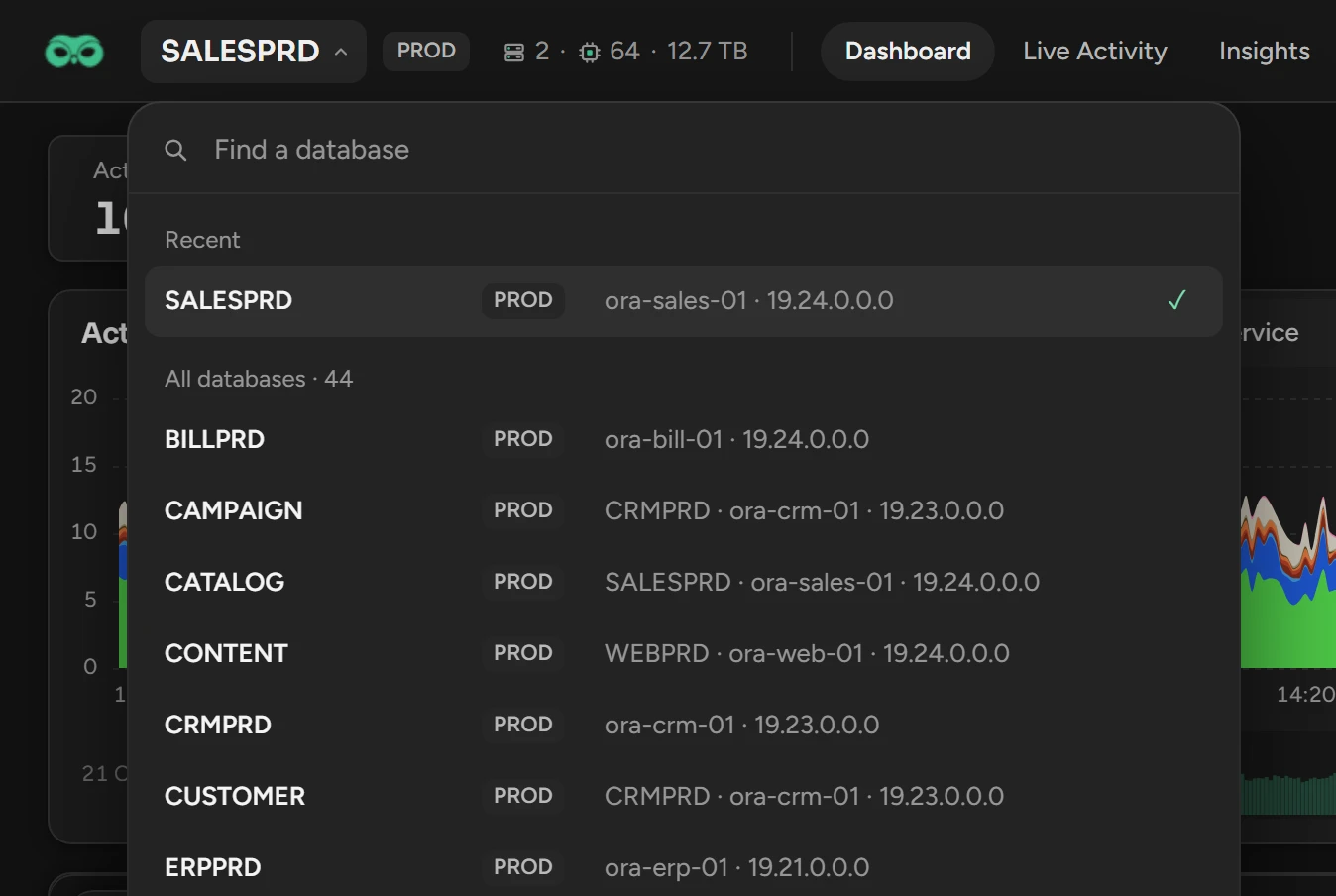
Click the database name in the bar.
Type part of a name in Find a database, or look under Recent or All databases.
Click the row. dbCove opens the same page for the other database.
The top row of the switcher shows the database that is open, its environment and the figures of its instance: the nodes, the CPUs and the used space. Click Details for the instance details.
Ask about a database
Click the Ask button at the right of the database bar. The chat window opens.
Type a question and press Enter.
The button needs Use AI, and shows only when dbCove AI is on. A PostgreSQL instance has no Ask button.
Open the help for a page
Click the ? beside the page title, at the right of the tabs, or beside a Settings section. The docs page about that screen opens in a new tab. You need View Docs.
A * next to a field means that the field is required.
The account menu
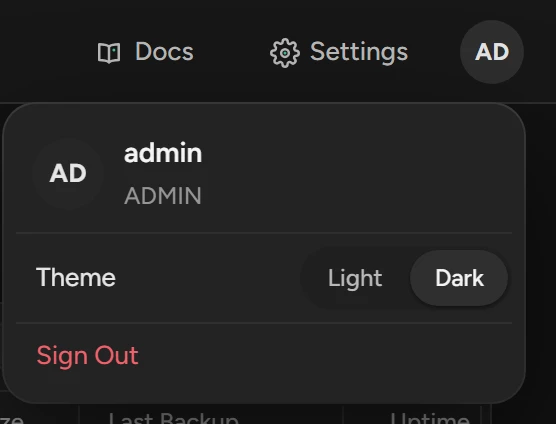
Click your initials at the right end of the bar to see your user name and role, change the Theme, or Sign Out.
Use the keyboard
| Where | Keys |
|---|---|
| Database switcher | Enter opens the first match. Esc closes it. |
| Ask field | Tab or → uses the suggested question. |
| Chat window, dialogs and panels | Esc closes the top one. |
| Settings | Type in Search settings to find a section. |
Related
Updated November 29, 2026