Ask dbCove AI
Ask dbCove AI about your databases in plain words, and read the numbers and the time window behind each answer.
Before you begin
- dbCove AI is set up and on. See Set up dbCove AI.
- The Ask button in the database bar needs Use AI. The Ask field on the Databases page needs View Insights.
- The AI switch of the database is on. See Keep a database out of dbCove AI.
- dbCove AI answers about Oracle databases and SQL Server instances. It does not answer about PostgreSQL instances.
Ask a question
Click the Ask button in the database bar to ask about this database. Click the Ask field on the Databases page to ask about any of your databases.
On the Databases page, if you have Oracle databases and SQL Server instances, select the engine at the bottom of the box: Oracle or SQL Server. One chat answers about one engine. If you select the other engine, a new chat starts.
Type the question and press Enter. Shift+Enter starts a new line.
To stop the answer, click the square button.
Ask a follow-up in the same box, such as "and yesterday?".
The answer continues when you close the window.
| To find out | Ask, for example |
|---|---|
| What happened | "Why was SALESPRD slow between 14:00 and 15:00?" |
| What runs now | "Is anything blocking on HRPRD?" |
| Across databases | "Which databases have the most active sessions now?" |
| Your procedures | "Is there a runbook for an archiver stuck?" |
"Now" means the last 15 minutes. If a name matches more than one database, such as a primary and its standby, dbCove AI asks which one.
Read an answer
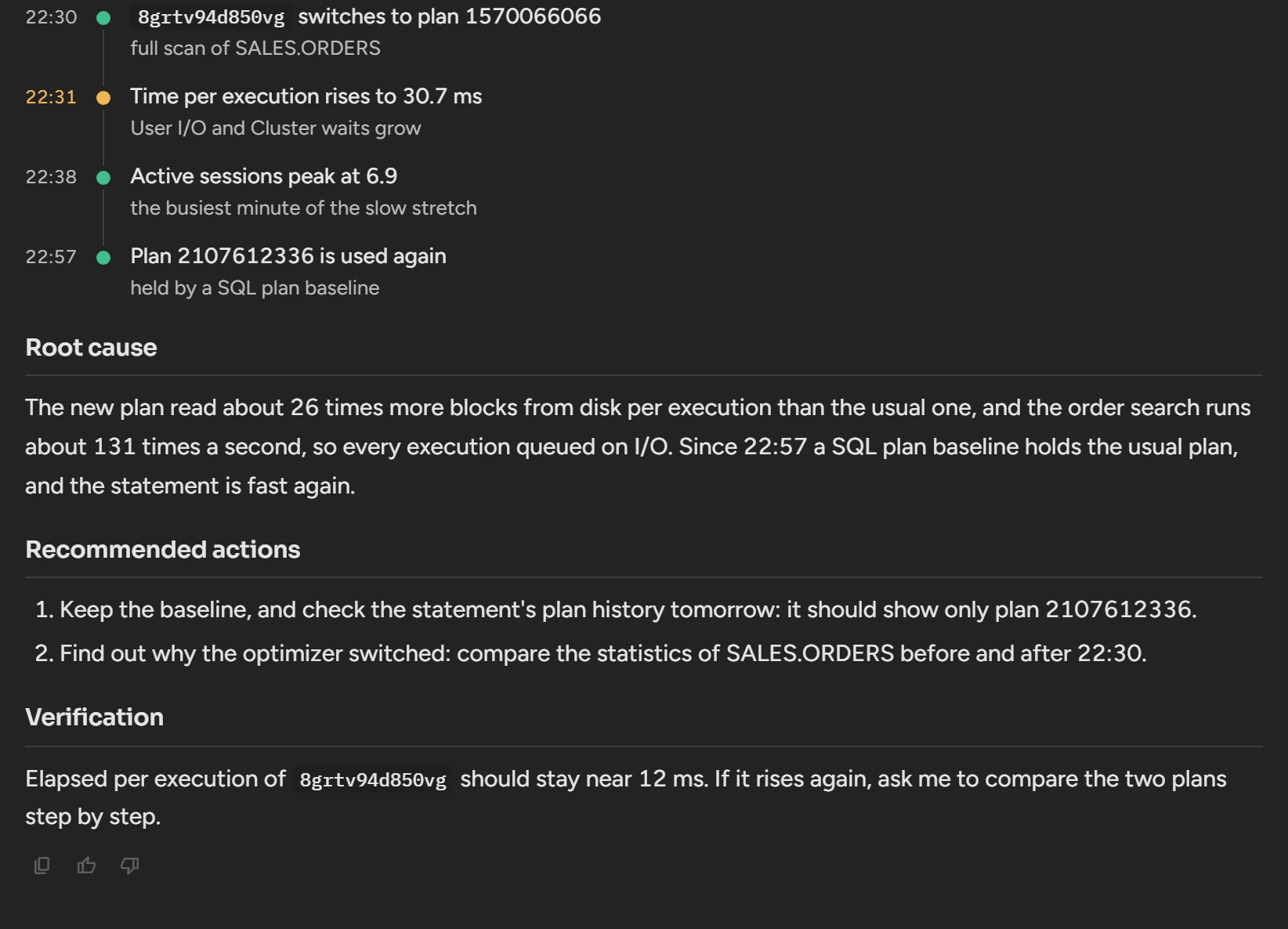
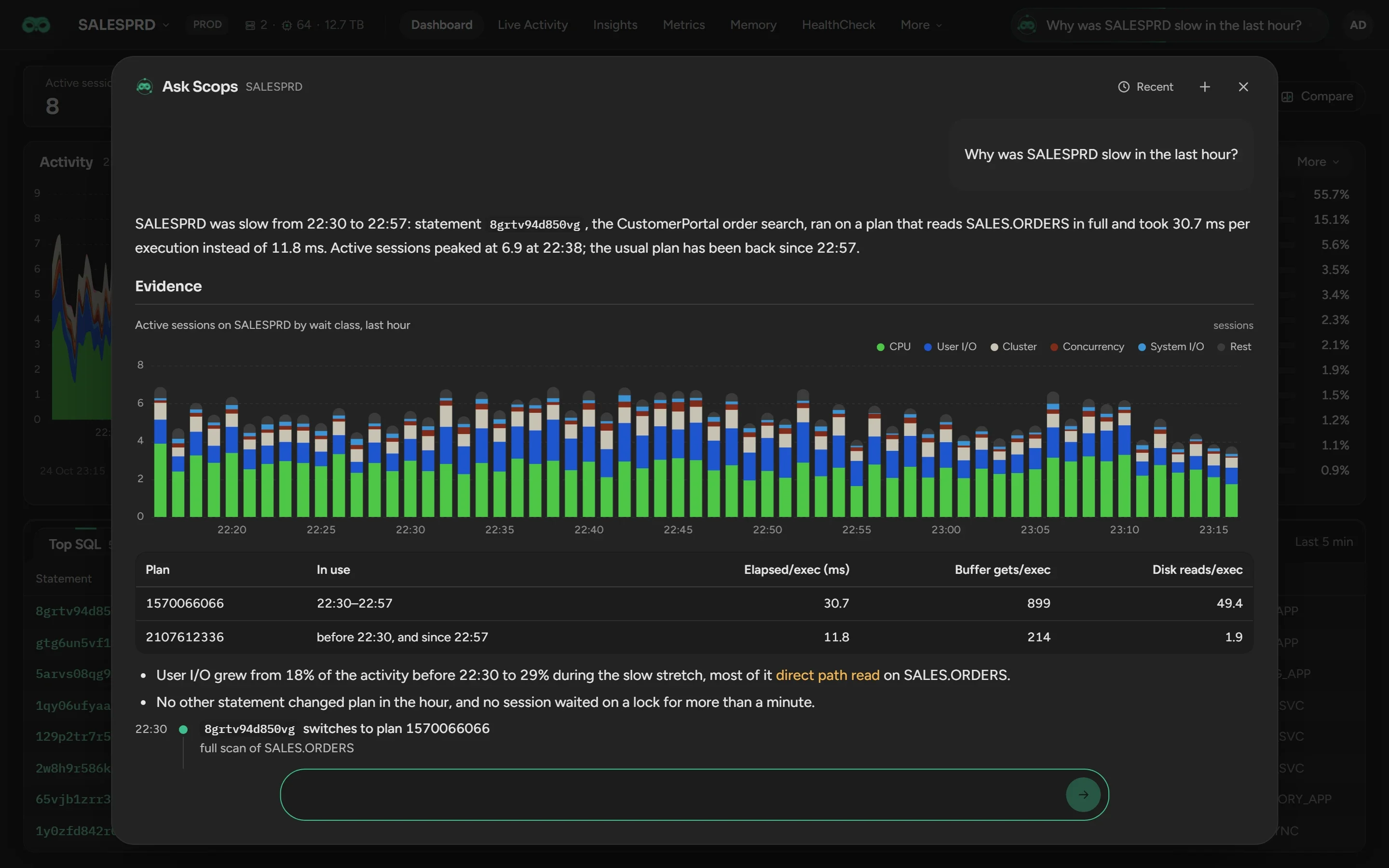
- The first line answers, with the key number and its window.
- Each number gives its window. If dbCove has less history than you asked for, the answer says so.
- Charts show the data that a tool returned. Point at a chart to read its values.
- A check that could not run, or minutes that dbCove did not sample, show as gaps, never as "no problem".
- A recommendation gives its evidence, the check that confirms the cause, and the risk.
Under each answer, Copy copies the answer with its tables. Good answer and Bad answer record your rating.
Continue a recent chat
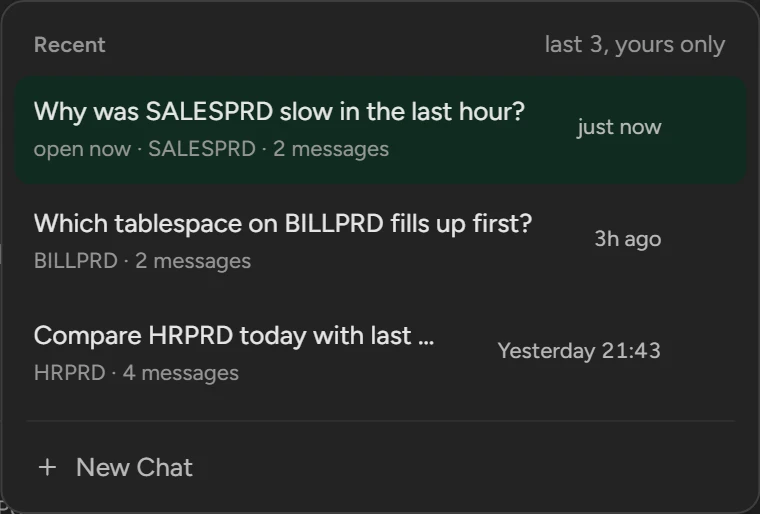
Click Recent at the top of the window.
Click a chat to continue it, or click its cross to delete it. New Chat starts an empty chat.
dbCove keeps your last three chats. Only you see them, from any browser.
Apply a change card
dbCove AI changes nothing by itself. For a change, it shows a card with what will run, where, and what it checked. Change cards are for Oracle databases. On a SQL Server instance, dbCove AI only reads.
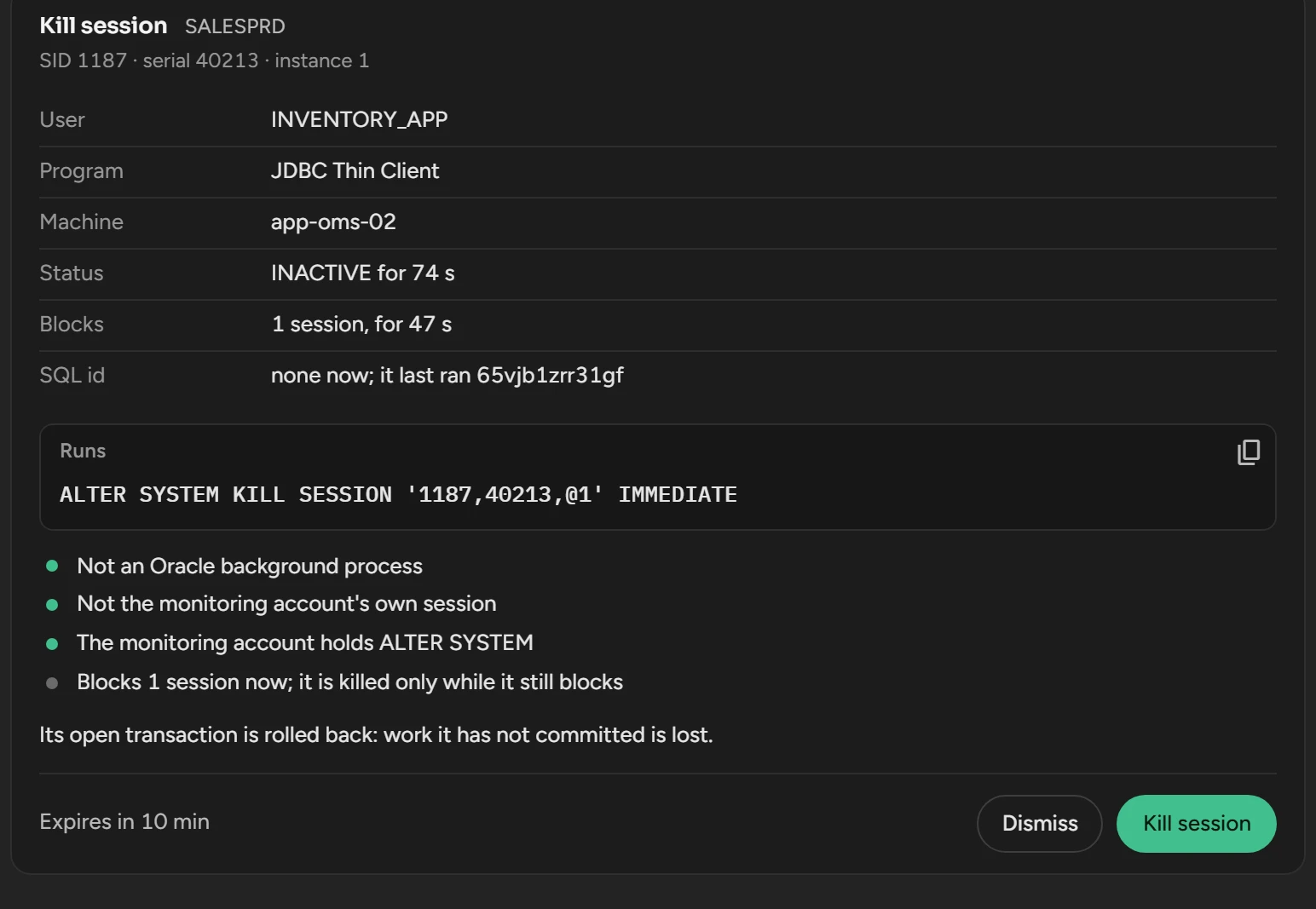
Ask for the change, for example "kill the blocking session on SALESPRD".
Read the statement, the database and the checks on the card.
Click the button on the card, for example Kill session.
| Ask for | The button, for example | Permission |
|---|---|---|
| Kill blocking sessions | Kill session | Kill sessions |
| Set the plan of a statement | Fix plan | Manage SQL plans |
| Run the SQL Tuning Advisor | Run advisor | Run SQL Tuning Advisor |
| Gather table or schema statistics | Gather stats | View Statistics, Run Statistics |
| Add or resize a datafile or tempfile | Add datafile | Manage datafiles |
| Create an alert from a query | Create alert | Manage alerts, Manage Policies |
| Change an alert rule | Change threshold | Manage Policies |
| Clear raised alarms | Clear alarm | Clear alerts |
| Mail a report on a schedule | Schedule mail | Manage reports, Manage Policies |
| Switch AI, the cache or Radar for databases | Turn on AI | Manage databases |
- Only a click on the button changes anything. Text such as "yes, do it" does not.
- Only the person who asked can click it. The card expires after 10 to 30 minutes.
- dbCove reads again before it acts. For example, a session must still block, or nothing is killed.
- The card shows who applied it and when, and the Audit Trail records each click.
- Fix plan and Run advisor need the Diagnostics and Tuning Pack switch. Gather stats needs the database in Statistics. Schedule mail sends only to the addresses that you give.
dbCove AI never changes the Diagnostics and Tuning Pack switch of a database or your license key.
What dbCove AI can read
dbCove AI reads the data that dbCove collected, for any window that dbCove keeps. This includes activity, statements and plans, sessions, space, health, alerts, Radar findings and your AI Knowledge. In a chat about SQL Server, it does not read AI Knowledge.
For a fact that is only on the database, such as the blocking chain now, it runs a read-only query from a fixed list. The query returns 100 rows at most and stops after 15 seconds, or after 5 seconds on a SQL Server instance.
dbCove AI never:
- reads AWR, ASH, ADDM or SQL Monitor, except a plan outline for a Fix plan card;
- reads the rows of your application tables;
- runs SQL that you paste into the chat.
With AI-written SQL on, dbCove AI can also query the dbCove repository, for 200 rows and 45 seconds at most. It never reads the tables of users, credentials, settings, audit trail or logs.
With AI-written SQL on monitored databases on, dbCove AI can also read a monitored database or SQL Server instance with a query of its own, when no built-in reading has the answer. The rules of that query are fixed in dbCove, not left to the model. On an Oracle database:
- dbCove AI writes the query from the question that you ask in words. It does not run SQL or code that you give in the chat, as it is or changed. If your message has SQL in it, send the question again without the SQL.
- It reads only the dictionary and performance views that the grant script of dbCove lists. See Database user privileges.
- It reads only the views of Oracle. If the name of a view leads to another object on the database, the query does not run.
- It is one
SELECT. It never inserts, updates or deletes rows, and it never creates, alters or drops an object. dbCove refuses such a statement before it reaches the database. - It calls only the SQL functions of Oracle: no PL/SQL, no package, no database link, no hint.
- It runs in a read-only transaction, without parallel execution.
- dbCove reads the execution plan before the query runs. If the plan is too large, the query does not run.
- It stops after 15 seconds, and dbCove reads 200 rows at most. One answer can run 4 such queries at most.
- Each query is written to Logs with its text. On the database, its session shows the module
DBCOVEand the actionRunDiagnosticQueryTool.
On a SQL Server instance:
- dbCove AI does not run SQL that you give in the chat, as for Oracle.
- It is one
SELECT, orWITH…SELECT: no variable, no temporary object, no hint, noINTO. dbCove refuses any other statement before it reaches the instance. - It reads only the system views and functions of SQL Server,
INFORMATION_SCHEMAand some tables of msdb. It never reads an application table, the code of a module or a job step, a password hash or the values of a statistics histogram. - It runs serially, in a transaction that dbCove rolls back. If SQL Server estimates the query as too costly, the query does not run.
- It stops after 15 seconds, and dbCove reads 200 rows at most. One answer can run 4 such queries at most.
- Each query is written to Logs with its text.
Limits
- A question uses at most 15 rounds, 1,200,000 tokens and 8 minutes. Then dbCove AI answers with what it found.
- Windows go back as far as the retention, 15 days in Community.
- dbCove does not collect ADDM findings, SQL Monitor reports, AWR snapshots or SQL tuning sets.
- The output limit of the profile can stop a long answer. Ask dbCove AI to continue.
Related
Updated November 29, 2026