Editions and activation
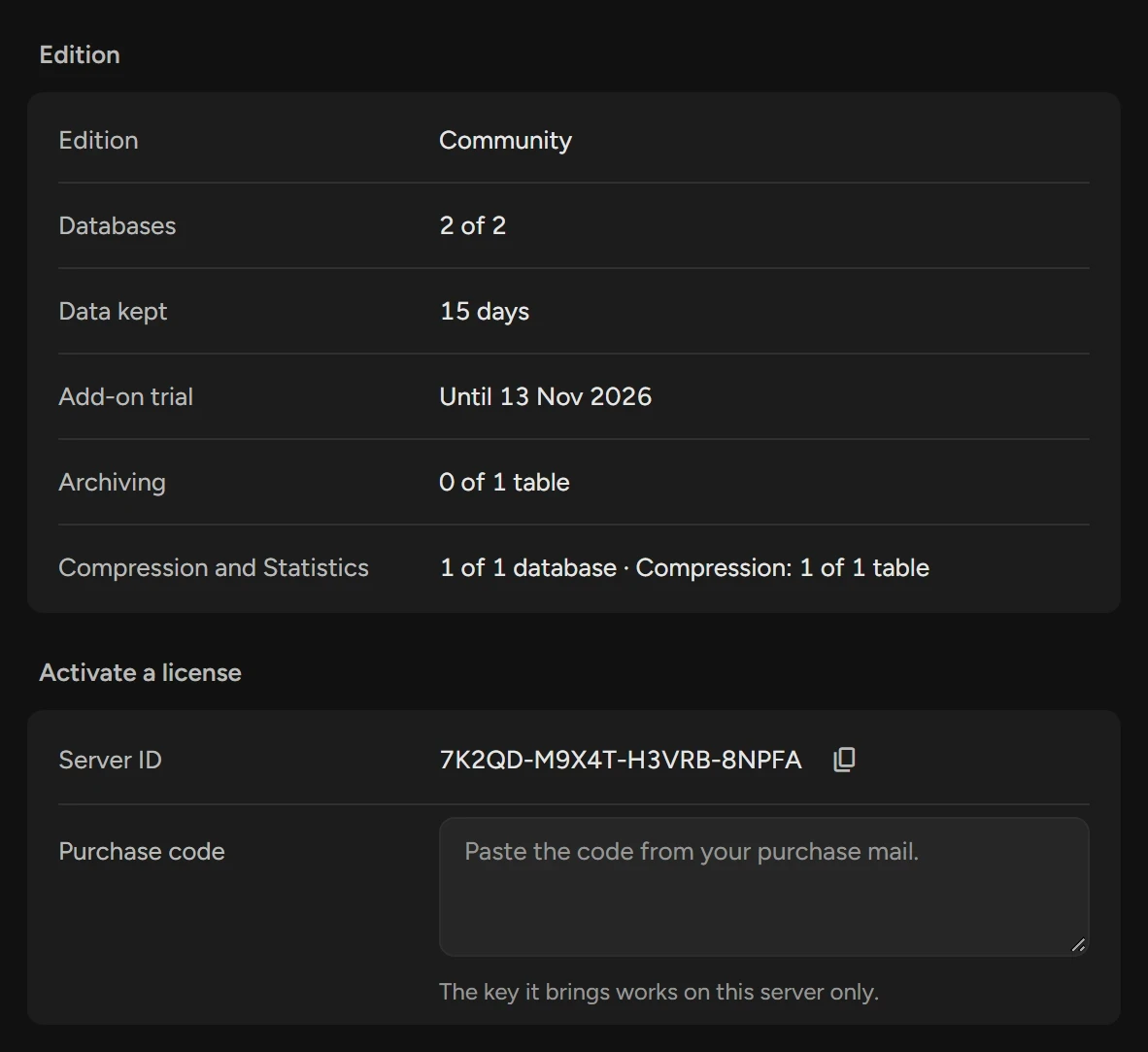
Activate a license key to change a Community installation to Professional, and see the limits of each edition.
Before you begin
- You need the purchase code from your purchase mail.
- You need Manage Settings and Manage edition key.
Activate a license key
Open Settings › About.
Paste the purchase code into Purchase code.
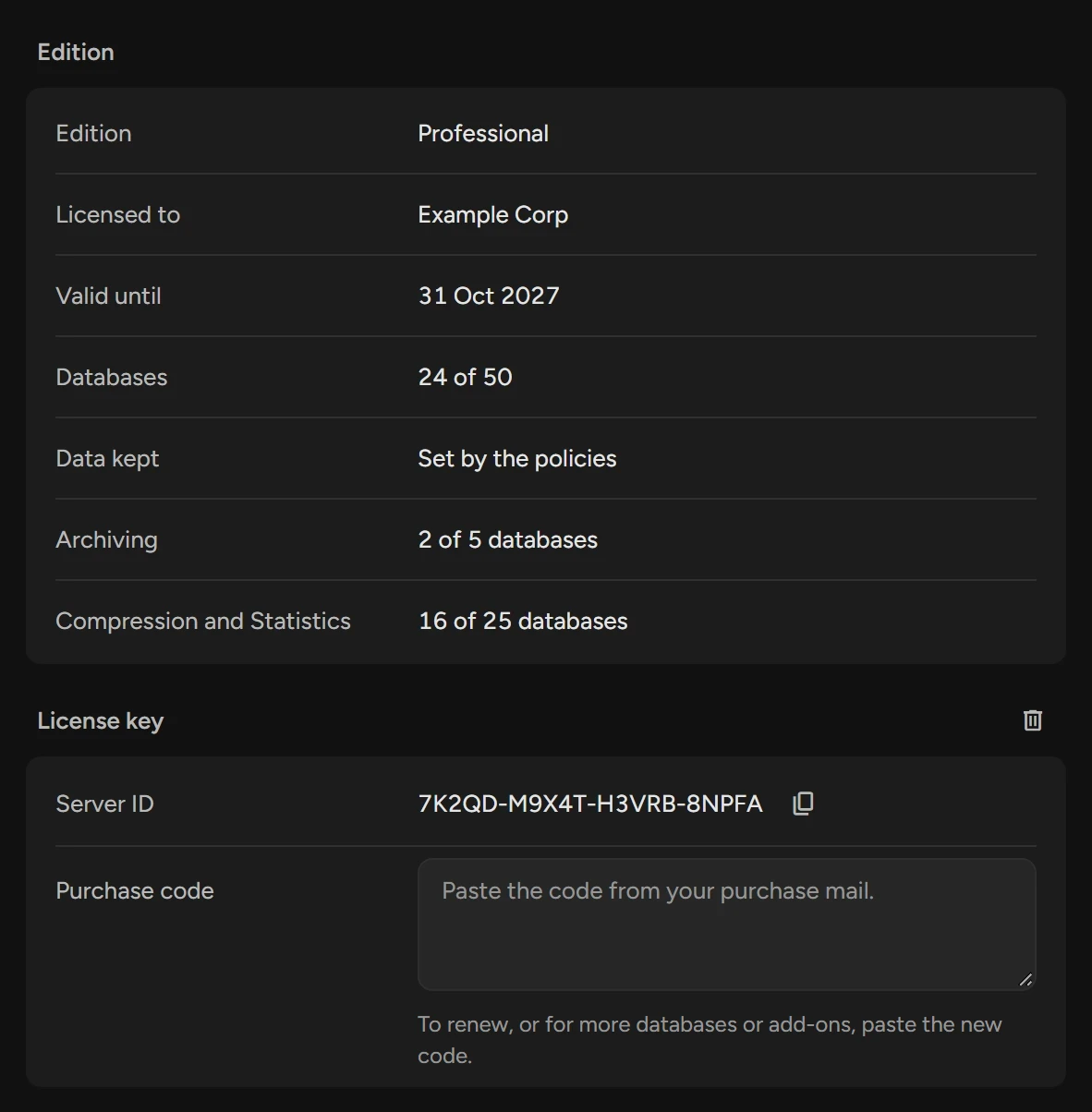
Click Activate. The Edition group shows Professional.
The key works only on this server. dbCove sends only the purchase code and the Server ID to https://scops.dev.
Activate a server that has no internet
In Settings › About, copy the Server ID.
On a device that is online, open
https://scops.dev/activate.Enter the purchase code and the Server ID, and click Activate.
Copy the key, or click Download key.
Paste the key into Purchase code and click Activate.
Renew a key
Paste the new purchase code into Purchase code and click Activate. The new key applies from its first day. Do the same for more databases, instances or add-ons.
An ended key works for 14 more days. Then dbCove uses the Community limits, but it does not cut your data to 15 days while the ended key stays in place.
Remove a key
In Settings › About, click the bin button of the License key group.
Click Remove the Key. The server runs as Community.
Move a key to another server
On the old server, write down the Server ID, then remove the key.
Open
https://scops.dev/release, enter the purchase code and the old Server ID, and click Release.On the new server, activate the same purchase code.
You can release up to 2 servers from one purchase code in 12 months. A new server has its own Server ID, also with the same repository. If you install dbCove on the same server again, the Server ID and the key stay.
What each edition allows
| Community | Professional | |
|---|---|---|
| Oracle databases monitored | 2 | 2, plus the number in your key |
| SQL Server instances monitored | 2 | 2, plus the number in your key |
| PostgreSQL instances monitored | 2 | 2, plus the number in your key |
| MySQL instances monitored | 2 | 2, plus the number in your key |
| MongoDB replica sets monitored | 2 | 2, plus the number in your key |
| Data kept | 15 days | As your retention policies set, for each engine in your key |
| Archiving | 1 table, for a 30-day trial | The Oracle databases in your key |
| Compression and Statistics | 1 database, for a 30-day trial. Compression on 1 table of it. | The Oracle databases in your key |
| Everything else | All database and instance pages, Radar Engine, alerts, reports and dbCove AI. | |
- Each engine has its own limit. An instance or a replica set does not use the place of an Oracle database, or of another engine.
- A key adds to the 2 free of each engine. For example, a key for 3 MySQL instances monitors 5 MySQL instances.
- A key applies to the engines that it names. An engine that is not in your key stays at the Community limits: 2 databases, instances or replica sets, and 15 days of data. Settings › About shows "not in the key" on its line.
- Each registered Oracle database counts, also each pluggable database, a standby and a database that you only archive into.
- A SQL Server, PostgreSQL or MySQL instance counts one time, with all its databases.
- A MongoDB replica set counts one time, with all its members.
- Compression and Statistics share one limit: a database counts one time.
- The trial starts on the day that dbCove created the repository. Then the add-ons stop until you enter a purchase code.
- A key can leave out an add-on. Its page then shows "Not in your key".
When you reach a limit
In Add Database, an engine at its limit shows a line such as "2 of 2 SQL Server instances" below Engine, and you cannot continue. You can still add a database of an engine that has a place. An import of Oracle databases stops at the limit of Oracle.
When each engine is at its limit, dbCove disables Add Database. The add buttons on the add-on pages work the same way.
Databases beyond the limit
If you have more databases or instances of an engine than the edition allows, for example after a key ends, dbCove monitors the ones of that engine that you registered first. The others show as Not Monitored: dbCove keeps them, but does not collect data from them, alert on them or open them. When you delete a monitored one, the next one of the same engine gets its place.
Related
Updated November 29, 2026